Previous blog/Context:
In an earlier blog, we discussed Spark ETL with Cloud data lakes (Azure blob and Azure Data Lake services). Please find below blog post for more details.
Introduction:
In this blog, we will discuss Spark ETL with Cloud data lakes and we will be doing Spark ETL with AWS S3 bucket. We will use a public S3 bucket and we will understand how to do ETL with it.

We will perform below Spark ETL
- Install required spark libraries
- Create connection with AWS S3 bucket
- Read data from S3 bucket and store into dataframe
- Transform data
- write data into parquet file
- write data into CSV file
First clone below GitHub repo, where we have all the required sample files and solution
https://github.com/developershomes/SparkETL/tree/main/Chapter4
If you don’t have setup for Spark instance follow earlier blog for setting up Data Engineering tools in your system. (Data Engineering suite will setup Spark, MySQL, PostgreSQL and MongoDB in your system) In that Spark instance we already have packages installed for AWS S3 buckets.
Public AWS S3 bucket
We are going to access the Public AWS S3 bucket from Spark. As a part of the Registry of Open Data on AWS, there are different types of data publicly available for learning purposes.
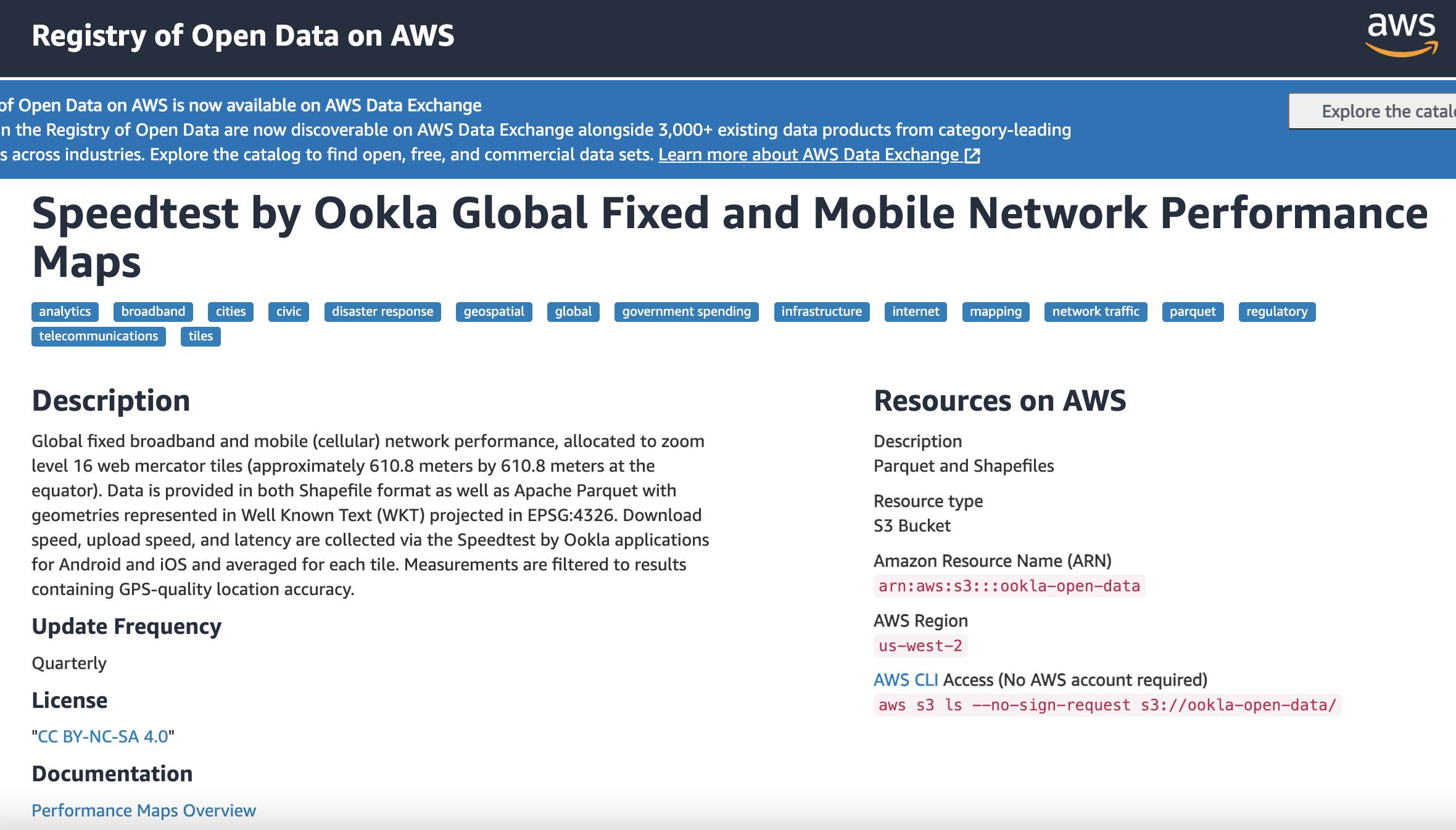
Install required spark libraries & Start Spark Session
With our Spark instance, we already have AWS S3 bucket packages installed. So, we will not require to specify externally. You can check Jars files from /opt/spark/jars location

If you want to use the same package you can use the Maven repo link and pass it in the config file.
https://mvnrepository.com/artifact/com.amazonaws/aws-java-sdk-s3/1.12.425

AWS JAVA sdk bundle
https://mvnrepository.com/artifact/com.amazonaws/aws-java-sdk-bundle/
With this configuration, we will start spark session. Here, we are using Public AWS S3 bucket and we will have credentials for that so we will pass configuration
“fs.s3a.aws.credentials.provider”:”org.apache.hadoop.fs.s3a.AnonymousAWSCredentialsProvider”
spark = SparkSession.builder.appName("chapter4")\
       .config("fs.s3a.aws.credentials.provider", "org.apache.hadoop.fs.s3a.AnonymousAWSCredentialsProvider") \
       .getOrCreate()
sqlContext = SparkSession(spark)
#Dont Show warning only error
spark.sparkContext.setLogLevel("ERROR")
Create connection with AWS S3 bucket
Before creating connection from Spark. We will install AWS S3 client and explore data into S3 bucket so we will have understanding on data. From the web download and install CLI for AWS. after that execute below commands
aws s3 ls --no-sign-request s3://ookla-open-data/parquet/performance/
aws s3 ls --no-sign-request s3://ookla-open-data/parquet/performance/type=fixed/
aws s3 ls --no-sign-request s3://ookla-open-data/parquet/performance/type=fixed/year=2019/
aws s3 ls --no-sign-request s3://ookla-open-data/parquet/performance/type=fixed/year=2019/quarter=1/
aws s3 ls --no-sign-request s3://ookla-open-data/parquet/performance/type=fixed/year=2019/quarter=1/2019-01-01_performance_fixed_tiles.parquet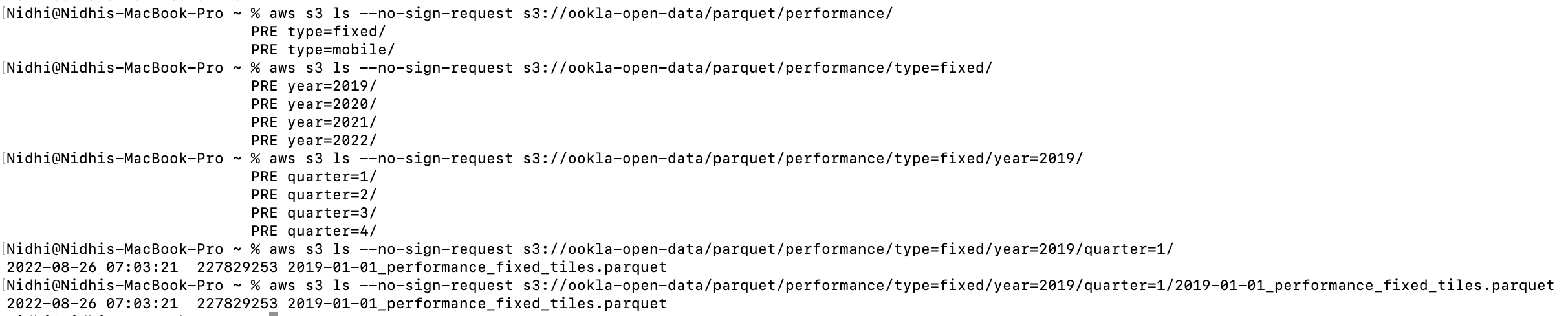
As per above in the performance folder there are fixed and mobile data and in that we have every year quarter-wise data available. We can also directly pass fixed folders from Spark and it can read data from all of the underlying folders.
But here each file is a very big file so we will try with one file. To check file size or if you want to download file locally, we use the command below.
aws s3 cp --no-sign-request s3://ookla-open-data/parquet/performance/type=fixed/year=2019/quarter=1/2019-01-01_performance_fixed_tiles.parquet sample.parquet
Each file is more than 200 MB.
We will use below command to create connection with S3 bucket
df = spark.read.parquet("s3a://ookla-open-data/parquet/performance/type=fixed/year=2019/quarter=1/2019-01-01_performance_fixed_tiles.parquet")Now, we have data into dataframe, so we can print schema and can also view sample data.
df.printSchema()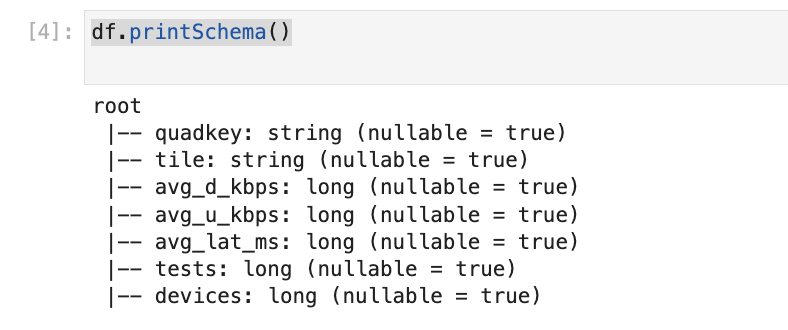
df.show()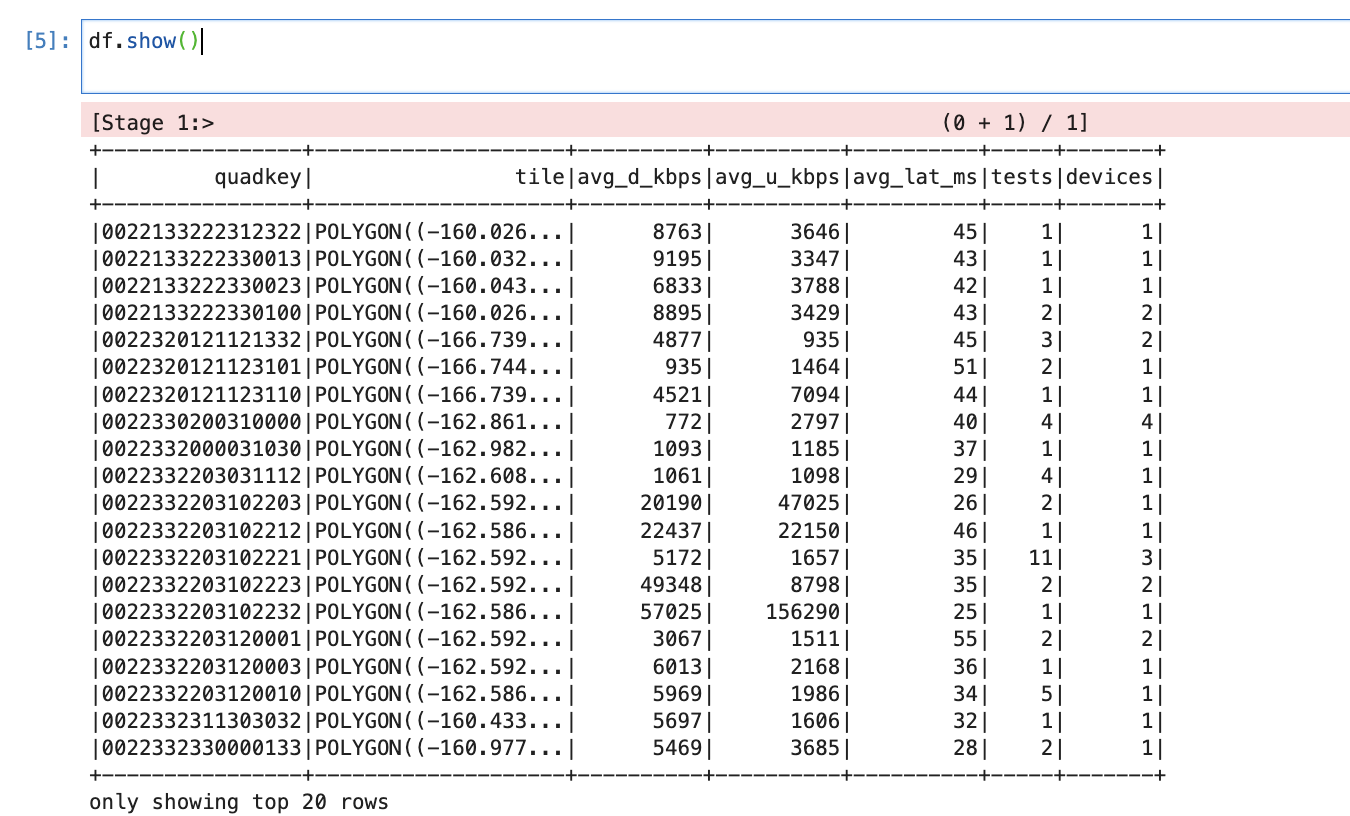
Transform data
We will create HIVE table/view from dataframe. So that we can write Spark SQL and can do all the transformation.
print('Register the DataFrame as a SQL temporary view: source')
df.createOrReplaceTempView('tempSource')

print('Displaying top 10 rows: ')
display(spark.sql('SELECT * FROM tempSource LIMIT 10'))

newdf = spark.sql('SELECT * FROM tempSource LIMIT 1000')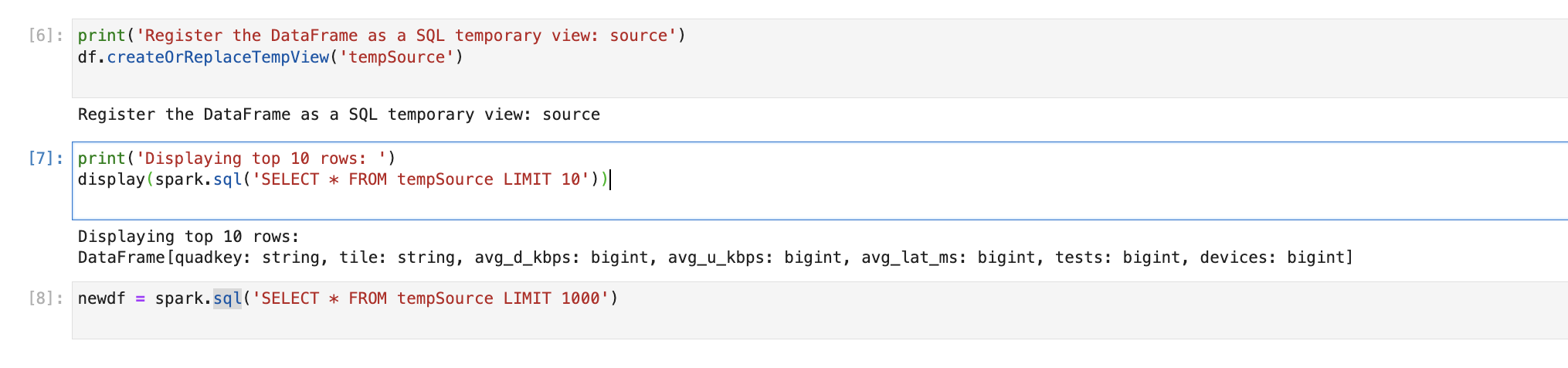
Write data into parquet file
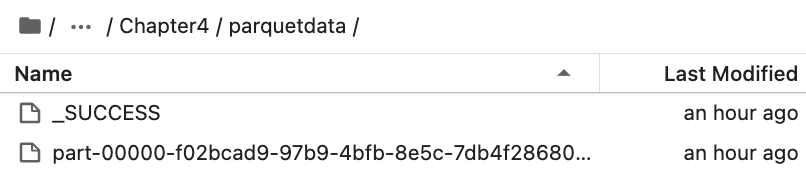
newdf.write.format("parquet").option("compression","snappy").save("parquetdata",mode='append')
It will create folders and create parquet files.
Write data into CSV file
newdf.write.format("csv").option("header","true").save("csvdata",mode='append')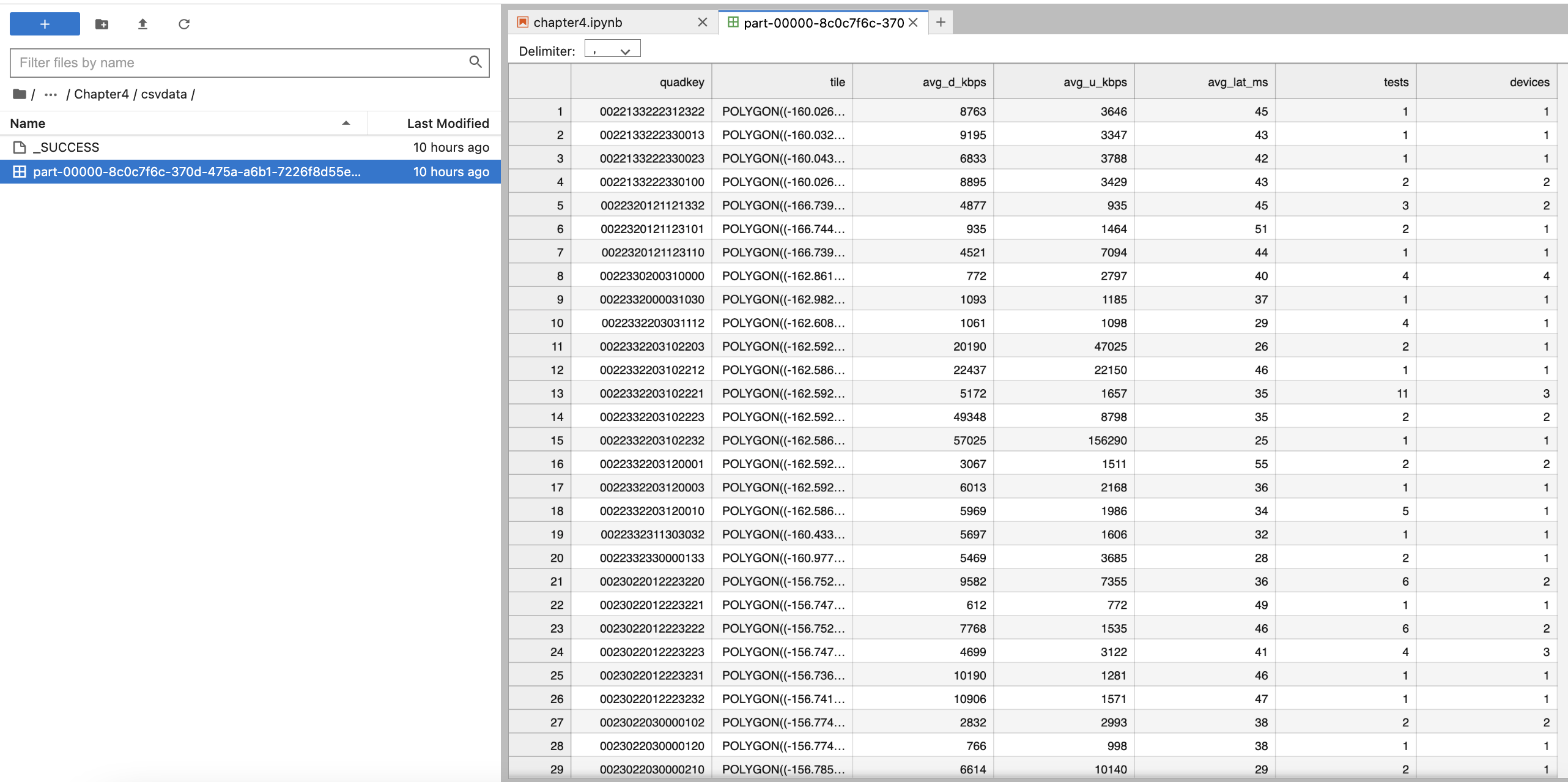
Conclusion:
Once we set config of AWS S3 bucket, using spark.Read we can read files from there and using spark.Write we can write files there.
 Developers' HOME