Previous blog/Context:
In an earlier blog, we discussed Spark ETL with Lakehouse (with Delta Lake). Please find below blog post for more details.
Introduction:
In this blog, we will discuss Spark ETL with Apache HUDI. We will first understand what Apache HUDI is and why Apache HUDI is used for creating Lake house. We will source data from one of the source systems which we have learned till now and load that data into Apache HUDI format. We will create an on-premise lake house and load all data into it.
What is Apache HUDI?
Apache Hudi is an open-source data management framework for Apache Hadoop-based data lakes. Hudi stands for “Hadoop Upserts Deletes and Incrementals.” It provides a way to manage data in a big data environment with features like data ingestion, data processing, and data serving. Hudi was originally developed by Uber and was later contributed to the Apache Software Foundation as an open-source project.
Hudi provides several key features that make it useful for managing big data, including:
- Upserts, deletes, and increments: Hudi supports efficient updates and deletes existing data in a Hadoop-based data lake, allowing for incremental data processing.
- Transactional writes: Hudi supports ACID transactions, ensuring that data is consistent and reliable.
- Delta storage: Hudi stores data as delta files, which allows for fast querying and processing of data changes.
- Schema evolution: Hudi supports schema evolution, enabling changes to the schema without requiring a full reload of the data.
- Data indexing: Hudi provides indexing capabilities that make it easy to query data in a Hadoop-based data lake.
Overall, Hudi provides a flexible and efficient way to manage big data in a Hadoop-based data lake. It enables efficient data processing and querying while ensuring data consistency and reliability through ACID transactions. Hudi is used by a variety of companies and organizations, including Uber, Alibaba, and Verizon Media

Today, we will be doing the operations below ETL and with this we will also be learning about Apache iceberg and how to build a lake house.
- Read data from MySQL server into Spark
- Create HIVE temp view from data frame
- Load filtered data into HUDI format (create initial table)
- Load filtered data again into HUDI format into same table
- Read HUDI tables using Spark data frame
- Create Temp HIVE of HUDI tables
- Explore data
First clone below GitHub repo, where we have all the required sample files and solution
https://github.com/developershomes/SparkETL/tree/main/Chapter8
If you don’t have setup for Spark instance follow earlier blog for setting up Data Engineering tools in your system. (Data Engineering suite will setup Spark, MySQL, PostgreSQL and MongoDB in your system) In that Spark instance we already have packages installed for Azure blog storage and Azure Data Lake Services.
Start Spark application with all required packages
First, we will start Spark session with all the required packages and configuration for Apache HUDI. We know that with our spark instance we don’t have packages (jar file) available for Apache HUDI, so when we start spark session, we need to externally specify that. We will also be using MySQL so we will specify package requirement for MySQL also.
With Apache Iceberg, we also need to pass the configurations below.
| spark.sql.extensions | org.apache.spark.sql.hudi.HoodieSparkSessionExtension |
| spark.sql.catalog.spark_catalog | org.apache.spark.sql.hudi.catalog.HoodieCatalog |
| spark.serializer | org.apache.spark.serializer.KryoSerializer |
| spark.sql.catalog.local.warehouse | warehouse |

Now, we have our spark session available with all the required packages and configuration, so we can start ETL process.
Read data from MySQL server into Spark
(If you have already completed chapter 7, you can skip read data from MySQL and create HIVE table, and can directly go to create HUDI table section)
For this ETL, we are also using the same MySQL as source system and are loading same table. We will not discuss much on how to load data from MySQL and how to create HIVE table as we have already discussed in detail in Chapter 7.
If you don’t have already uploaded data into MySQL, please follow the earlier blog for the same.

We will read this data from Spark and we will create a spark data frame and HIVE table on this.

Create HIVE temp view from data frame
We will create HIVE temp view from data frame.
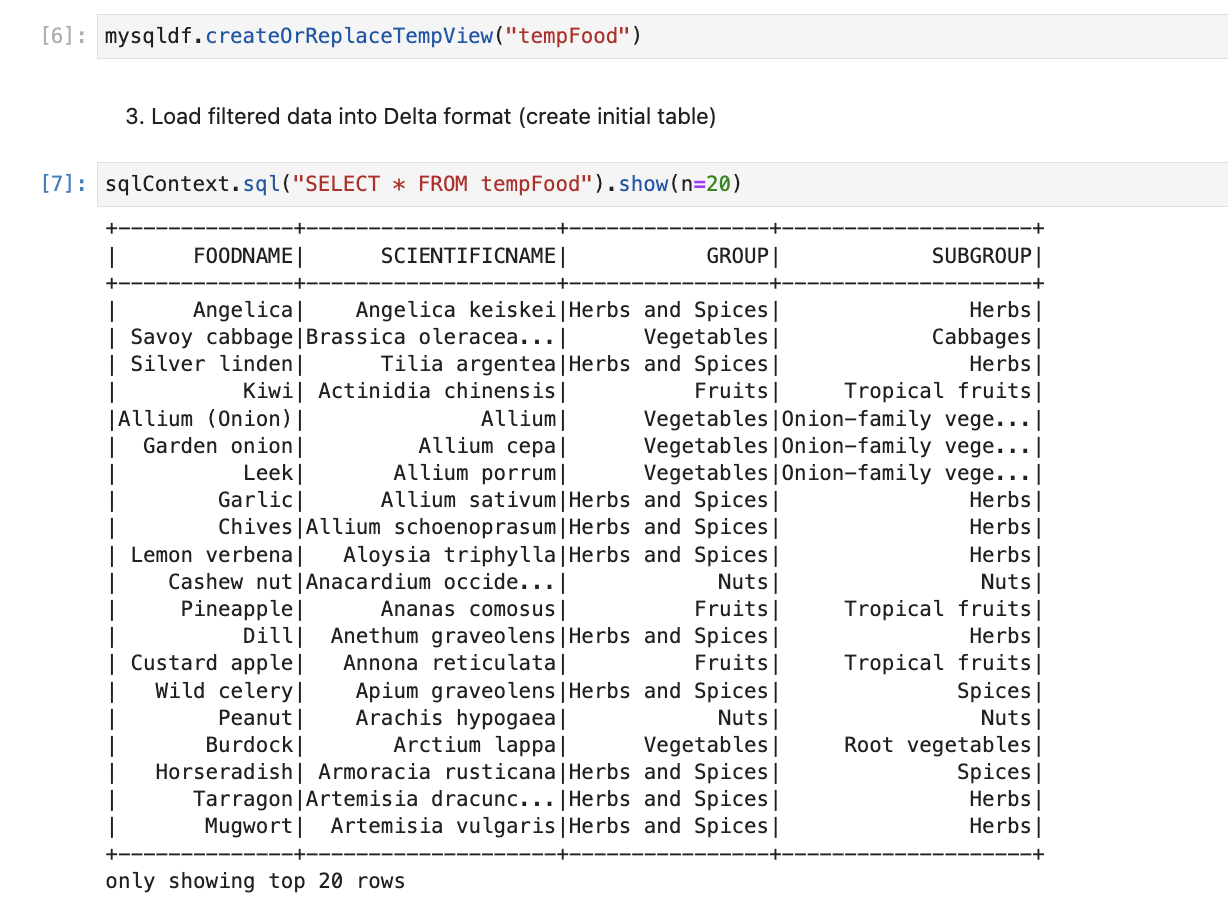
We will explore data and check the highest food group and filter with one group.
Load filtered data into HUDI format (create initial table)
We have data frame “newdf” available in which we have only one group food is there. We will use that to create the first hudi table.

With HUDI format we need to pass a few options. And some of the options are mandatory, if we don’t pass that it will not create table. Few mandatory columns which we have passed in our example.
| hoodie.table.name | hudi_food |
| hoodie.datasource.write.recordkey.field | FOODNAME (name of unique column) |
| hoodie.datasource.write.precombine.field | ts (we have created column for this) |
We also need to pass the base path.
Once, we prepare options parameters and base path, using format “hudi” we can create hudi table.
It will create a folder named “hudi_food” and create parquet file in which it will store data and metadata.

Inside “hudI_food”, we have metadata and parquet file in which we have data. Folder structure will be as below

Which is actually looks like this in folder

Inside “.hoddie” folder

properties file have all the properties of HUDI table.

parquet file with actual data.

If in case, if we also specify partition property, it will create folder as below

It will create folder as below

Inside “hudi_food”

Load filtered data again into hudi format into same table
We will create one more data frame by filtering one more food group and then appending data into the same hudi table.
It will create one more parquet file into the same folder.

Read HUDI tables using Spark data frame
Now, we will read HUDI table into Spark data frame.

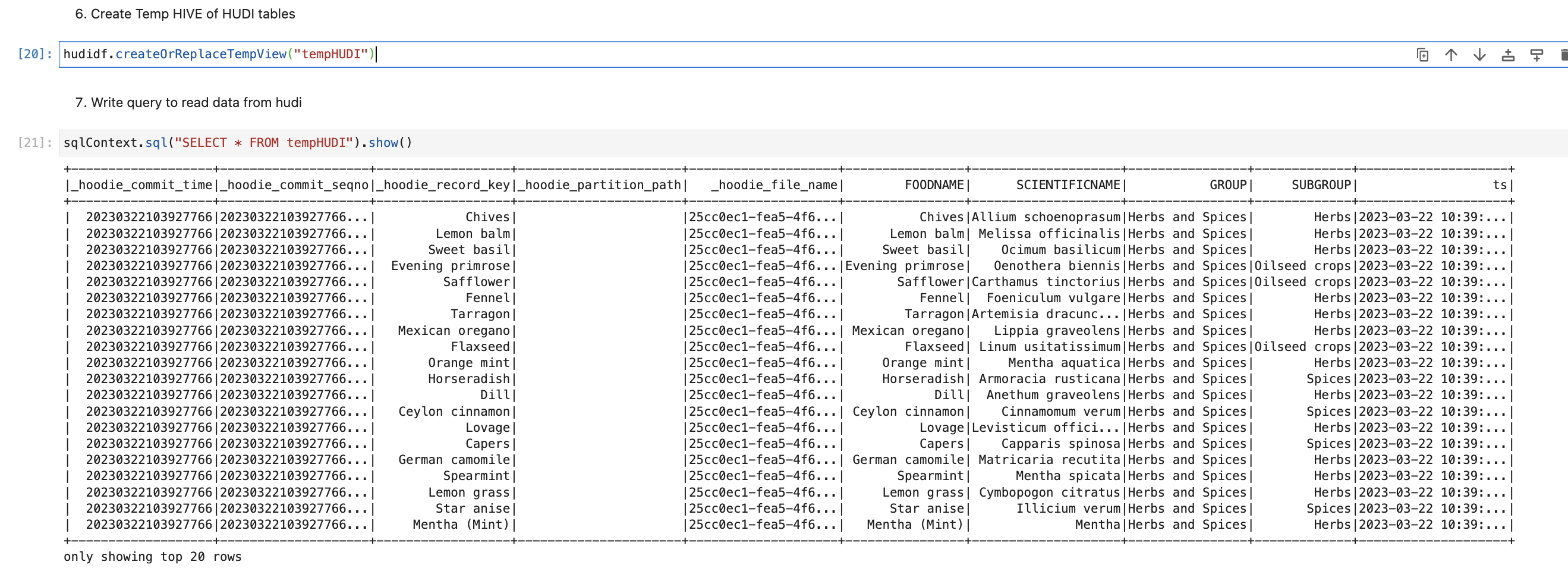
Here, we see that there are extra columns added. First 5 columns which we have not added but added by HUDI data frame. Those are the metadata. As we discussed, HUDI is not creating separate files for storing metadata but it is storing into same file only.
| _hoodie_commit_time | This field contains the commit timestamp in the timeline that created this record. This enables granular, record-level history tracking on the table, much like database change-data-capture. |
| _hoodie_commit_seqno | This field contains a unique sequence number for each record within each transaction. This serves much like offsets in Apache Kafka topics, to enable generating streams out of tables. |
| _hoodie_record_key | Unique record key identifying the record within the partition. Key is materialized to avoid changes to key field(s) resulting in violating unique constraints maintained within a table. (We have passed food name) |
| _hoodie_partition_path | If we pass partition column, it creates folders for each partition so, it will give path of each record |
| _hoodie_file_name | File name in which record is stored |
Now, if we print data

If I do “truncate=False” to check commit time and sequence.

Commit time is: 20230322103927766
Which is 2023/03/22 10:39:27.766 (YYYY/MM/DD HH:mm:SS.sss)
and commit sequence number: 20230322103927766_0_0
Create Temp HIVE of HUDI tables
We have data available in data frame. Now we will create HIVE temp table so that we can write Spark SQL.
Explore data
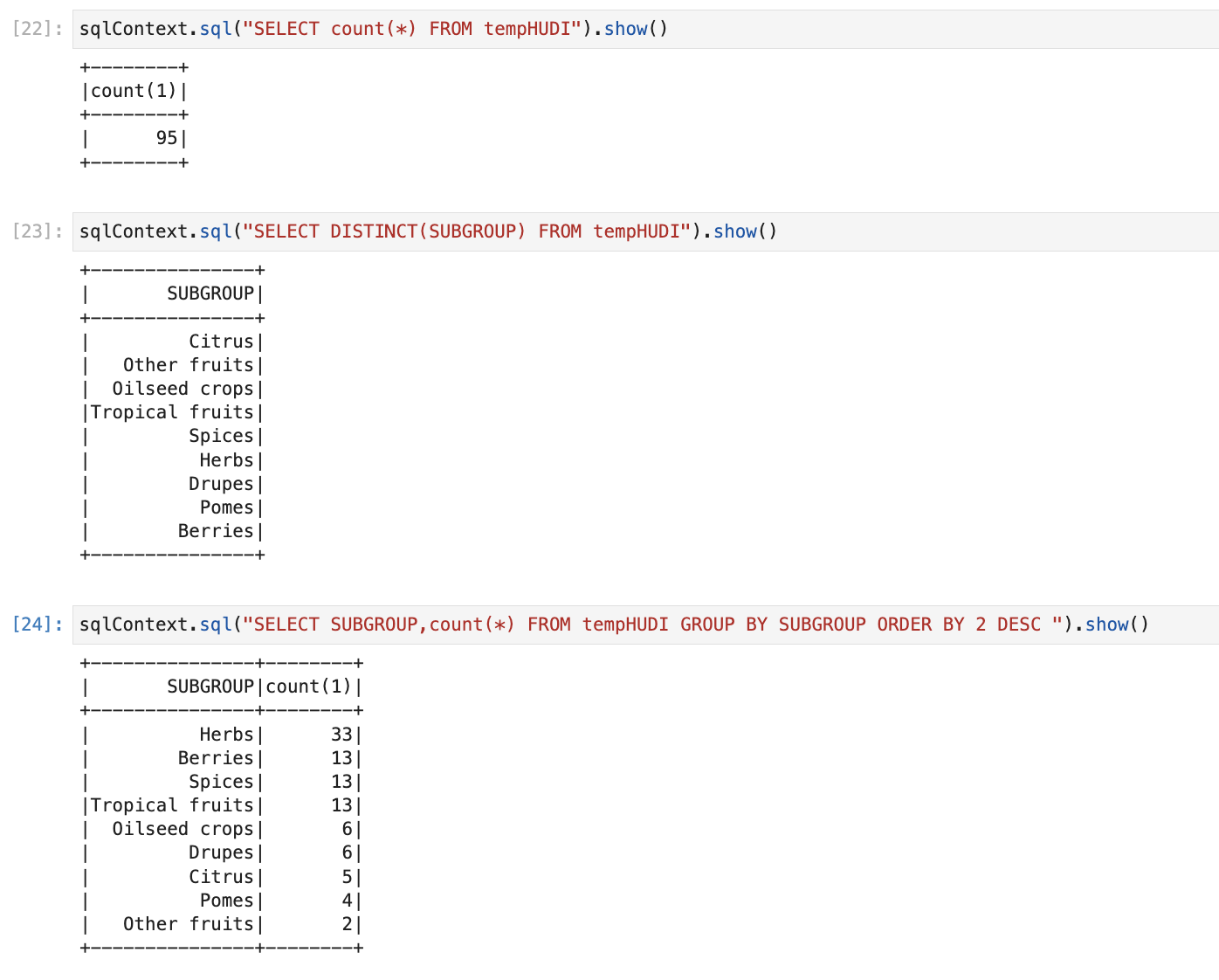
We can Spark SQL queries and explore data.
Conclusion:
Here, we have learned the concepts below.
- Understating of Apache HUDI
- How to install HUDI packages from Maven repo
- How to configure Spark parameters for HUDI
- How to create HUDI table and load data
- How data is stored in HUDI format
- How to read data from HUDI tables
- How to write Spark SQL queries on HUDI
 Developers' HOME