Previous blog/Context:
In an earlier blog, we discussed Spark ETL with Lakehouse (All the famous lake house formats). Please find below blog post for more details.
Introduction:
Today, we will discuss the points below.
- Load data into Delta table & check performance by executing queries.
- Load data into Delta table with partitioning & check performance by executing queries.
- Apply Compaction on the delta table & check performance by executing queries.
- Apply Optimize “Z-ordering” on the delta table & check performance by executing queries.
In this blog, we will be learning available optimization options with Delta Lake and once we apply all the options, we will execute the same query and we will check how it is improving our query performance.

We will be learning all of the above concepts by doing the below hands-on.
- Read data from CSV file to Spark
- Create a HIVE temp view from the data frame
- Load data into Delta format (create initial table)
- Load data into Delta format with partition
- Apply Optimize executeCompaction on the delta table
- Apply Optimize ZOrder on the delta table
- Check performance
First, clone below the GitHub repo, where we have all the required sample files and solutions
https://github.com/developershomes/SparkETL/tree/main/Chapter11
If you don’t have a setup for Spark instance follow the earlier blog for setting up Data Engineering tools in your system. (Data Engineering suite will setup Spark, MySQL, PostgreSQL, and MongoDB in your system) In that Spark instance, we already have packages installed for Azure blog storage and Azure Data Lake Services. (Link: https://developershome.blog/2023/01/30/data-engineering-tool-suite/)
Create Spark application
We will be creating Delta tables and also doing optimize operations on the delta tables. Optimize operations were earlier only available with Databricks delta lake only and later it was released for open delta lake format. Till now we were using older versions of delta libraries as we were only creating delta tables and were reading data from delta tables.
Now, we need to use a version greater than 1.2.0.
We will create our spark session as below.
This will start the session with the latest version of Delta and with specified configurations.

Read data from CSV file to Spark data frame & create a HIVE table
For our learning, we will be loading data from a CSV file. First, we will create a spark data frame from a CSV file. And we will also create a HIVE table. You can get CSV files from GitHub.
We have all data available in “csvdf” data frame. We will be using this data frame for creating a delta table.
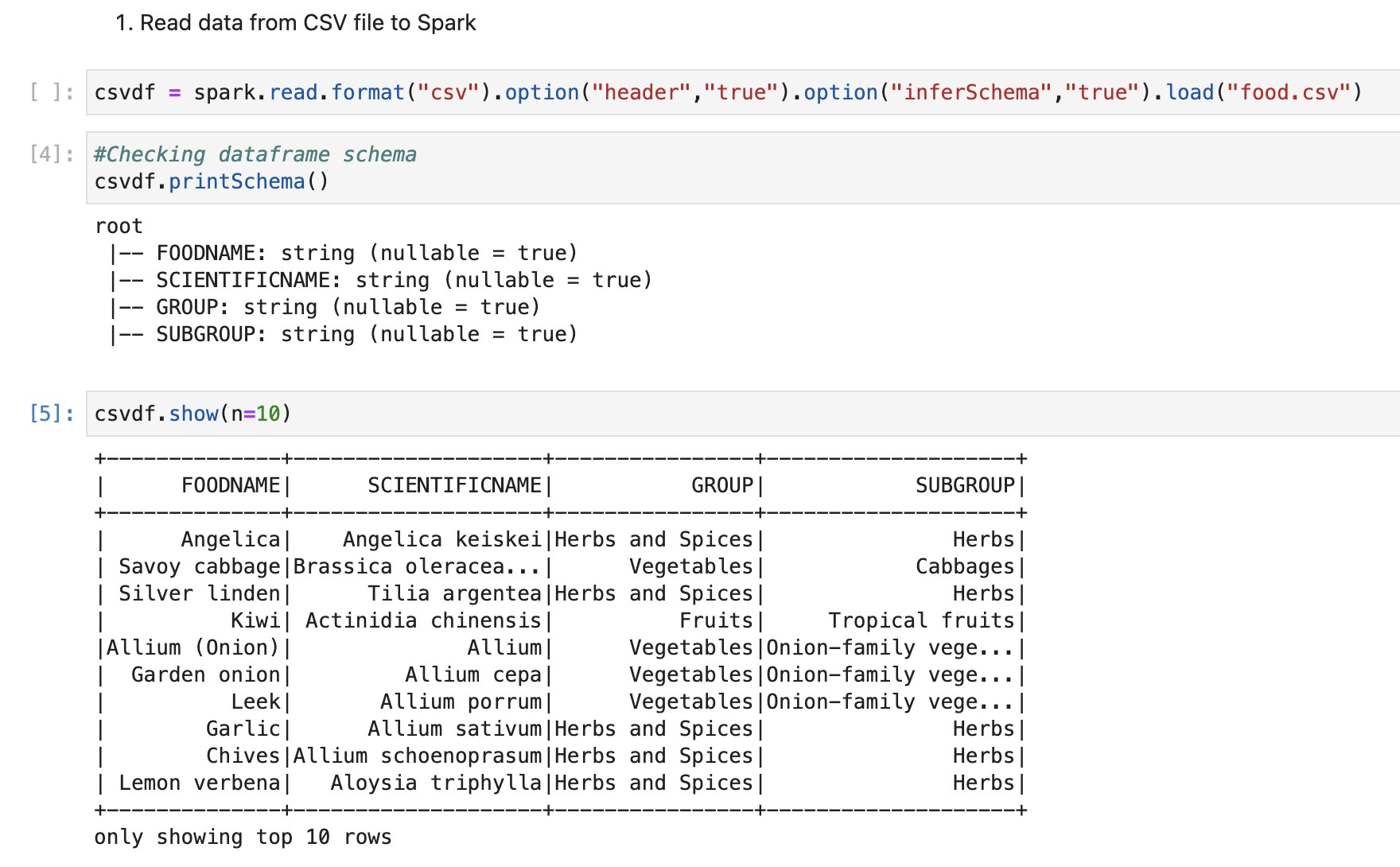
We will create a HIVE table from it. So it will be easy to write spark SQL.

Load data into Delta table & check performance by executing queries
We will create our first delta table by using a data frame, which we created earlier. We are not passing any delta properties and just creating a simple delta table.
First, we created a delta table and then we read data from delta lake by passing one filter condition.
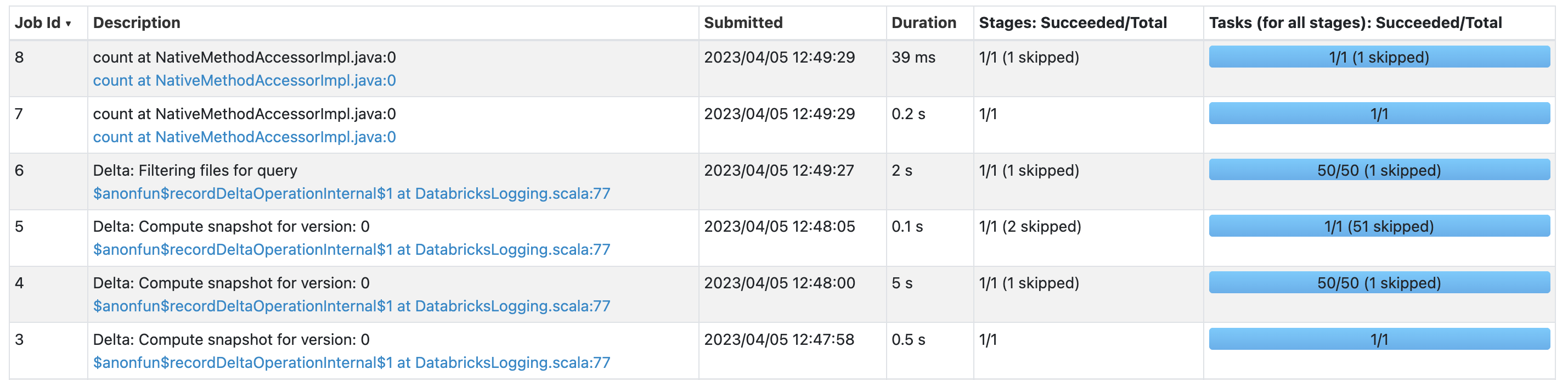
As per the Spark application dashboard, it took around 5 seconds to create a table and for our read query, it took around 2 seconds.
Spark create table query -> Job id 3,4, and 5
Spark read from delta query -> Job id 6,7, and 8
Load data into Delta table with partitioning & check performance by executing queries
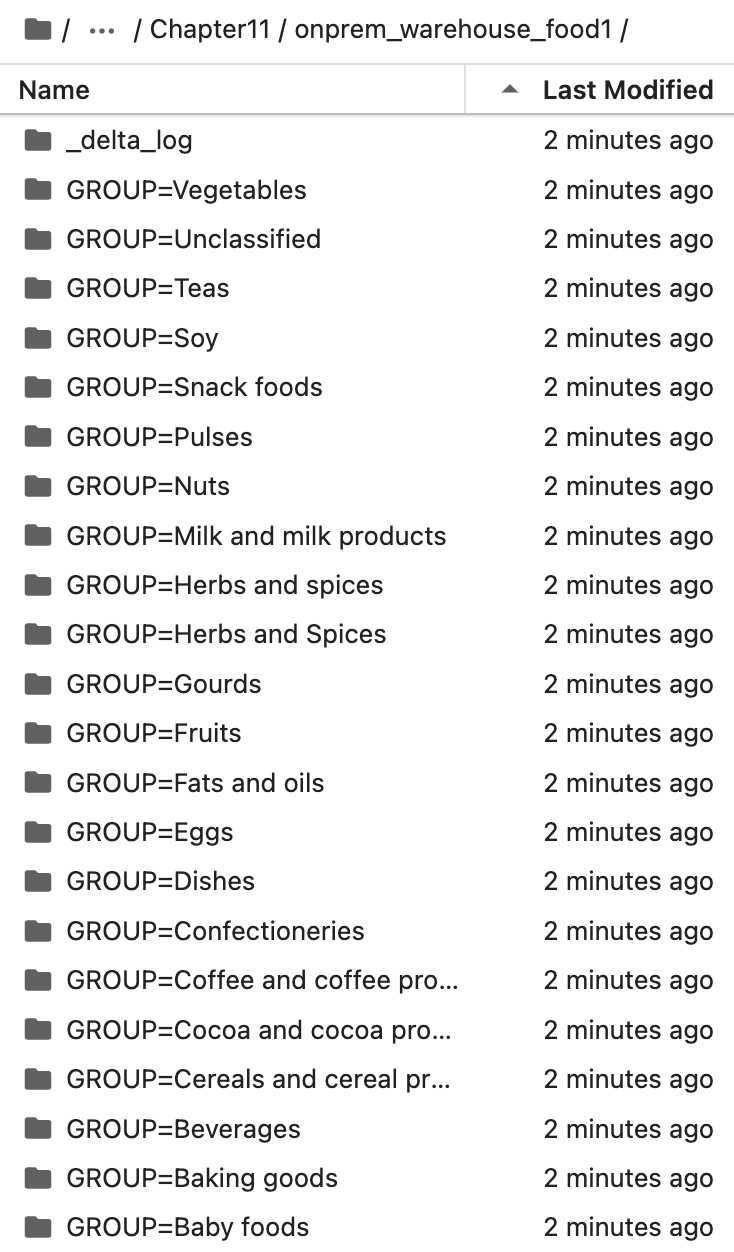
Now, we will create one more delta table with the same data, but this time we will create a table with a partition. We will use the food group as a partition column.
Code for creating a delta table with partition properties.
We have created a delta table with the food group as a partition, so at the file server level, it will create a folder as below.
(In each folder, it will store only that food group data in a parquet file format)
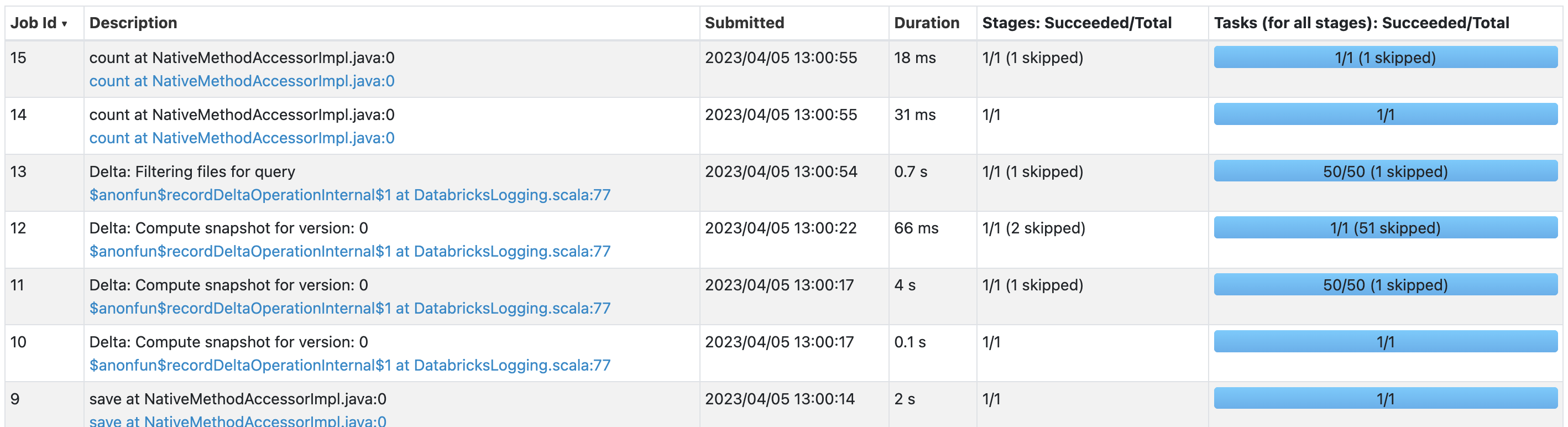
This time creating a delta table took around 6 seconds and reading data it took less than 1 second.
Creating delta table with partition -> Job id 9,10,11, and 12
Reading data from delta table -> Job id 13,14, and 15
Here, we see that if we query on the partition table it is really fast. (if we have a huge volume of data and if we have multiple versions, we will see huge performance differences)
Apply Compaction on the delta table & check performance by executing queries
When we create a delta table it normally creates multiple files based on the number of rows. Let’s consider a scenario where we have designed a data ingestion pipeline for incremental data load and every 1 minute hundred rows are added to the delta table. So it will create one more parquet file and metadata file. By end of the month, we will have thousands of parquet files and each file will have 100 rows, so when we do a query on It, it will take time. (as it needs to traverse from thousands of parquet files and metadata files)
Databricks introduced the concept of compaction ((From https://docs.delta.io/))
“Delta Lake can improve the speed of read queries from a table by coalescing small files into larger ones.”
For understanding this concept, we will duplicate data and load the same data multiple times.
So, we have 5 files with all 24 KB sizes.

When we executed a select query on this, this took around 1 second

Now, we will perform compaction, and check if there is a change in query performance or not.
One thing to note is that this operation is very CPU and Memory consuming.
This is creating a new file and combining all data from all other files and storing it.
The below screenshot file was created at 13:27 with a size of 33 KB, which is having all data.

Now, we will perform the same query and check the results.
With the same query, this time it took less than 1 second.

Apply Optimize “Z-ordering” on the delta table & check performance by executing queries
Z-Ordering is a technique to colocate related information in the same set of files. This co-locality is automatically used by Delta Lake in data-skipping algorithms. This behavior dramatically reduces the amount of data that Delta Lake on Apache Spark needs to read. (From https://docs.delta.io/)
In our delta table, when we do a query based on an ordering column or if we only need data by filtering that column, and we create “ZORDER” on that column (or columns) our query will be very fast.
We will create “ZORDER” on the food name column and after that, we will check performance.
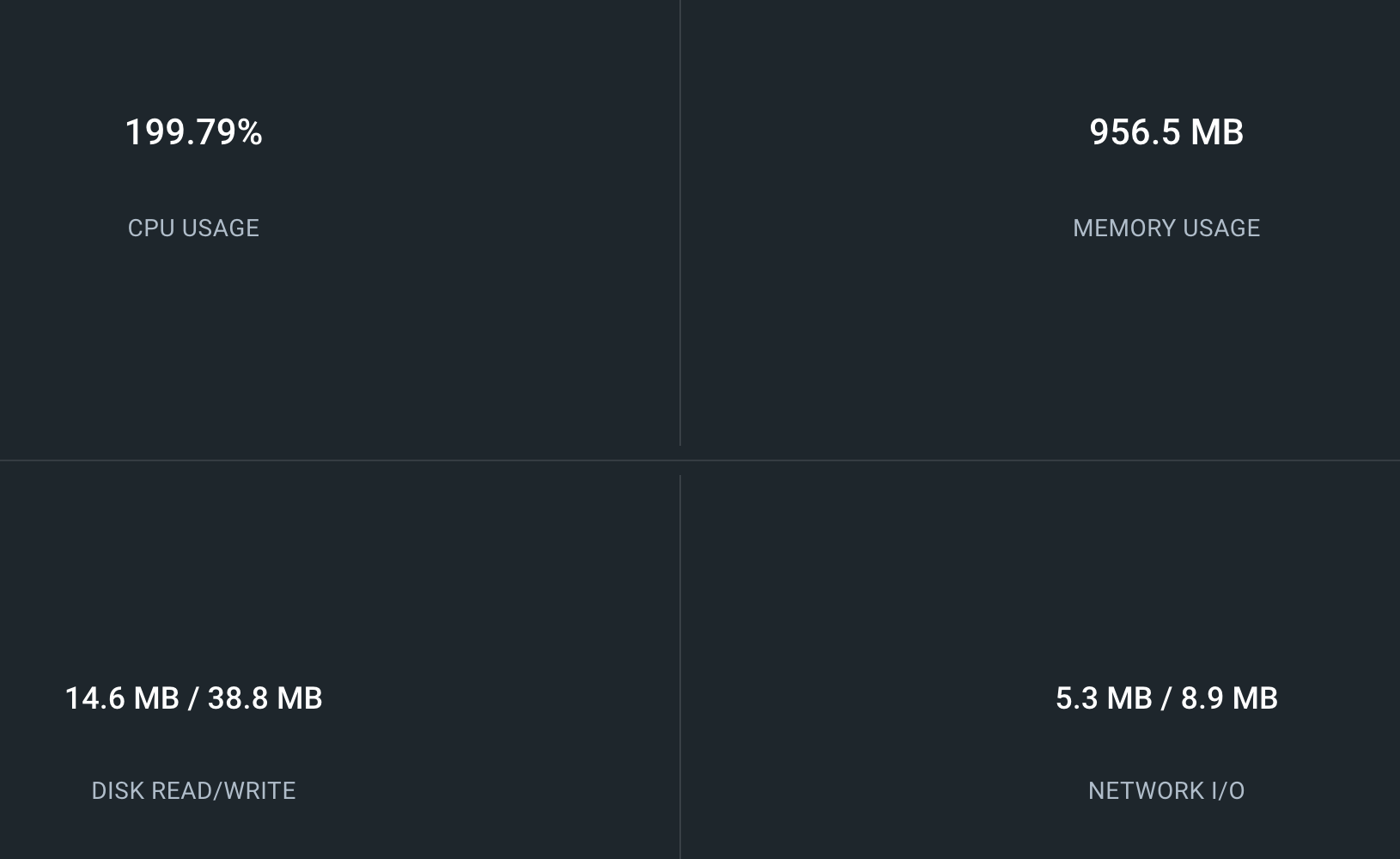
Again, this operation is very expensive. For me with a very small amount of data, it used below CPU and memory. (for few seconds)
Now, we execute the below query and check performance.
This query took around 0.5 seconds to execute.

Conclusion
Here, we have learned how can we optimize delta tables by using partitioning, compaction, and using multi-dimensional clustering (ZORDER).
References and learning materials
Delta Lake official page: https://docs.delta.io/latest/optimizations-oss.html
 Developers' HOME