End-to-End Lakehouse Implementation using Delta Lake

Data is one of the most valuable assets for businesses today, but managing and processing large volumes of data can be a complex and challenging task. Traditional data lakes and big data frameworks offer scalable storage and processing capabilities, but they often lack critical features such as transactional consistency, data versioning, and schema evolution. Delta Lake is an open-source data lake management system that provides ACID transactions and other advanced features on top of existing big data frameworks such as Apache Spark, Apache Hadoop, and Databricks.
What is Delta Lake?
Delta Lake is an open-source data lake management system that provides ACID transactions, data versioning, and schema evolution capabilities on top of existing big data frameworks. Delta Lake was developed by Databricks, the creators of Apache Spark, and it is now an open-source project under the Linux Foundation’s Delta Lake Project.
Delta Lake enables organizations to efficiently manage and process large volumes of data in a distributed environment while providing transactional consistency and data integrity. Delta Lake is built on top of the Apache Spark framework, which means that it can be used with existing big data workflows and tools, and it can seamlessly integrate with other Spark-based applications.
Key Features of Delta Lake
Delta Lake provides several key features that make it a powerful tool for managing and processing data in a distributed environment. Some of the key features of Delta Lake include:
- ACID Transactions: Delta Lake provides support for ACID transactions, which ensure that data modifications are atomic, consistent, isolated, and durable. This means that data modifications are either fully completed or fully rolled back and that multiple concurrent transactions can be executed without conflicts.
- Data Versioning: Delta Lake provides support for data versioning, which enables users to track changes to data over time. This feature allows users to retrieve previous versions of data, compare different versions of data, and audit data changes.
- Schema Evolution: Delta Lake provides support for schema evolution, which enables users to modify the schema of data over time. This feature allows users to add or remove columns, change data types, and modify the structure of data without breaking downstream applications.
- Delta Tables: Delta Lake provides support for Delta tables, which are tables that are managed by Delta Lake. Delta tables offer an abstraction layer on top of data stored in a data lake, enabling users to query, modify, and manage data using SQL or other programming languages.
- Optimized Performance: Delta Lake provides several performance optimizations that improve query performance, reduce data processing time, and minimize data storage requirements. These optimizations include predicate pushdown, data skipping, and indexing.
Real-World Examples of Delta Lake
Delta Lake is used by several organizations to efficiently manage and process large volumes of data in a distributed environment. Some of the real-world examples of Delta Lake include:
- Comcast: Comcast uses Delta Lake to manage and process data related to customer interactions, network performance, and advertising. Delta Lake enables Comcast to efficiently store and process large volumes of data while providing transactional consistency and data integrity. (Full story: https://www.databricks.com/customers/comcast)
- Viacom CBS: Viacom CBS uses Delta Lake to manage and process data related to user behavior, content performance, and advertising. Delta Lake enables Viacom CBS to efficiently process and analyze large volumes of data while providing data versioning and schema evolution capabilities. (Full story: https://www.databricks.com/customers/viacom18)
- Epsilon: Epsilon uses Delta Lake to manage and process data related to customer behavior, marketing campaigns, and loyalty programs. Delta Lake enables Epsilon to efficiently manage and process large volumes of data while providing ACID transactions and schema evolution capabilities.
Conclusion
Delta Lake is a powerful tool for managing and processing large volumes of data in a distributed environment.
Hands-on Delta Lake (End to End guide on creating Delta Lake)
From the start, we will create delta tables and we will understand with below practical example on how to create a lake house using Delta Lake. We will do the below hands
- Create Delta tables by reading data stored in CSV file formats
- Create Delta tables by reading data stored in SQL Server (we will use PostgreSQL)
- Create Delta tables by reading data stored in the NoSQL database (We will use MongoDB)
- CRUD operations with Delta tables
- Read Data from the Delta table
- Update rows in the Delta table
- Delete rows in the Delta table
- Data and Metadata understanding for Delta tables
- Select queries on Delta tables and SQL functions on Delta tables (or Lakehouse)
- Versioning and time travel with delta lake
- Optimization features associated with Delta Lake
- Create Lakehouse in Azure Data Lake Services or AWS S3 bucket
Whether you create your lake house on the clouds or on-premises, you need to follow the same steps. Most companies build lake houses on the cloud, as raw storage on the cloud is not that costly. Below are the offerings on the cloud from different cloud providers.
- Azure provides Azure Data Lake Service (ADLS)
- AWS provides AWS S3 bucket
- GCP provides Google bucket
In our hands-on, we will create an on-premise lake house. In the end, I will also guide you on how to create a lake house on the cloud, it is the same only thing is we need to provide parameters specific to the cloud providers. (Location, credentials, etc.)
We have the below options to deal with Delta Lake format in Lakehouse
- Apache Spark
- Rust (delta-rs)
- Python (delta-rs)
Apache Spark supports all the features/options of Delta Lake, while Rust and Python are still not supporting all the features/options.
For checking what all features are currently supported with Python and Rust please check the below GitHub Page
https://github.com/delta-io/delta-rs
We will be doing all the operations with Apache Spark. If you don’t have a setup for Spark instance follow the earlier blog for setting up Data Engineering tools in your system. (Data Engineering suite will setup Spark, MySQL, PostgreSQL, and MongoDB in your system) In that Spark instance, we already have packages installed for Azure blog storage and Azure Data Lake Services. (Link: Data Engineering Tool suite)
You can clone below the GitHub repo, where I have stored the solution in Jupyter Notebook all the required resources.
https://github.com/developershomes/Lakehouse/tree/main/DeltaLake
Create Spark application For Hands-On
With our hands-on, we will be sourcing data from SQL and NoSQL Databases and creating delta tables. We will also be doing CRUD operations on delta tables and also doing optimization on Delta tables.
We will need the below Spark packages or jar files
- Jar file/Package for Delta Lake -> “io.delta:delta-core_2.12:2.0.0”
- Jar file/Package for SQL Database (in our case PostgreSQL) -> “org.postgresql:postgresql:42.5.4”
- Jar file/Package for NoSQL Database (in our case MongoDB) -> “org.mongodb.spark:mongo-spark-connector_2.12:3.0.1”
We are doing optimization with Delta Lake and that feature is supported with the latest version of Delta Lake so we will be taking the latest version of Jar file or package.

We will use the code below to start our Spark application with all the required packages.
Our application started with all the required packages.

Create Delta tables by reading data stored in CSV file formats
First, we will create delta tables by reading data from CSV files. This will be the same if we are creating Lakehouse and delta table on the cloud or local file server.
We will use the below code for reading the CSV files into the Spark data frame and writing into delta format from the data frame.
CSV File: File Location on GitHub
Once we execute this code, it will display the below messages on the console and it will create a delta table on mentioned location.
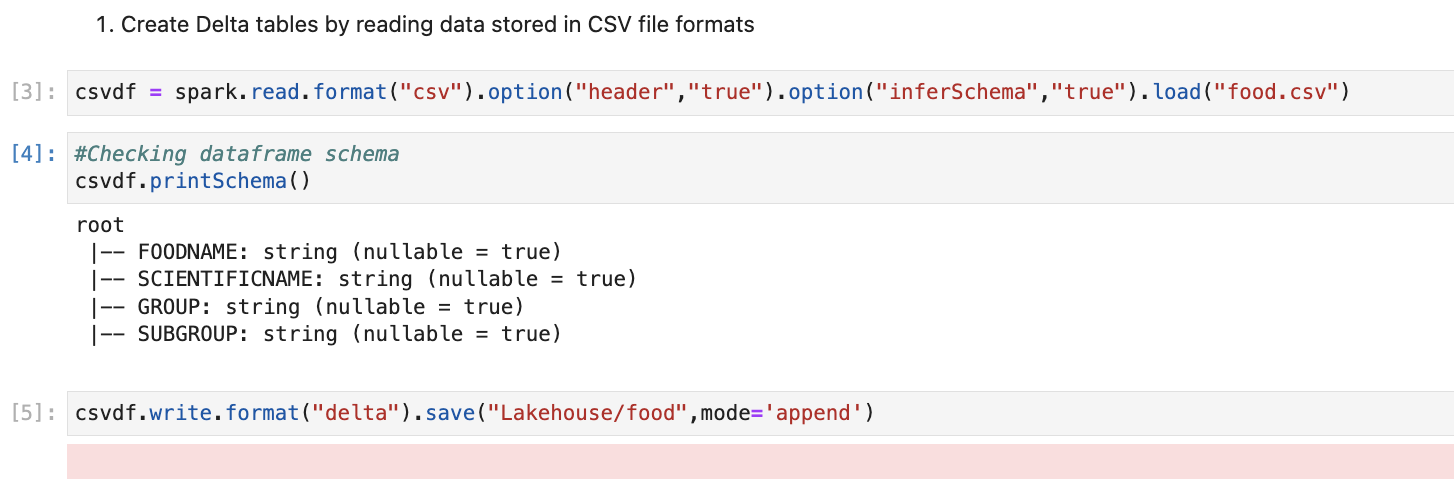
We will be checking these generated files in more detail, but for now, we see that the delta table is the combination of data + metadata. Data is stored in parquet format and metadata is stored in JSON format. (Inside _delta_log folder)

Create Delta tables by reading data stored in SQL Server (we will use PostgreSQL)
Here, we will learn how to read data from SQL databases and write it into Delta format. It may be SQL Server or MySQL or PostgreSQL Server as our source, it will be the same for all sources, the only difference is we need to select JDBC drivers accordingly.
For our example, we will be taking the source as a PostgreSQL server. Please use the below file and upload it into the PostgreSQL server using Import Wizard.
File for PostgreSQL Server: Employee Salary

We will use the below code to read data from PostgreSQL Server and write it into the Delta table.
Once we execute this code, it will display the below messages on the console and it will create a delta table on mentioned location.

Created table on a file server at “Lakehouse/employeeSalary” location

Create Delta tables by reading data stored in the NoSQL database (We will use MongoDB)
In this section, we will learn how to read data from the NoSQL database and write it into Delta format. We will be using MongoDB as the source.
Use this file to upload in MongoDB: Employee

We will use the below code to read from MongoDB and write it into Delta format.

It will create an employee delta table. We will see the below files on the file server.

CRUD operations with Delta tables
Now, we know how to create delta tables from different data sources. Our next step is to understand how to Insert, update and delete on the same delta tables.
Until now, we have created three delta tables. In this section, we will use the food table and we will first read data from the food table and then we will update a few rows and delete a few rows from the table.

We will use the below code to read data from the food table.
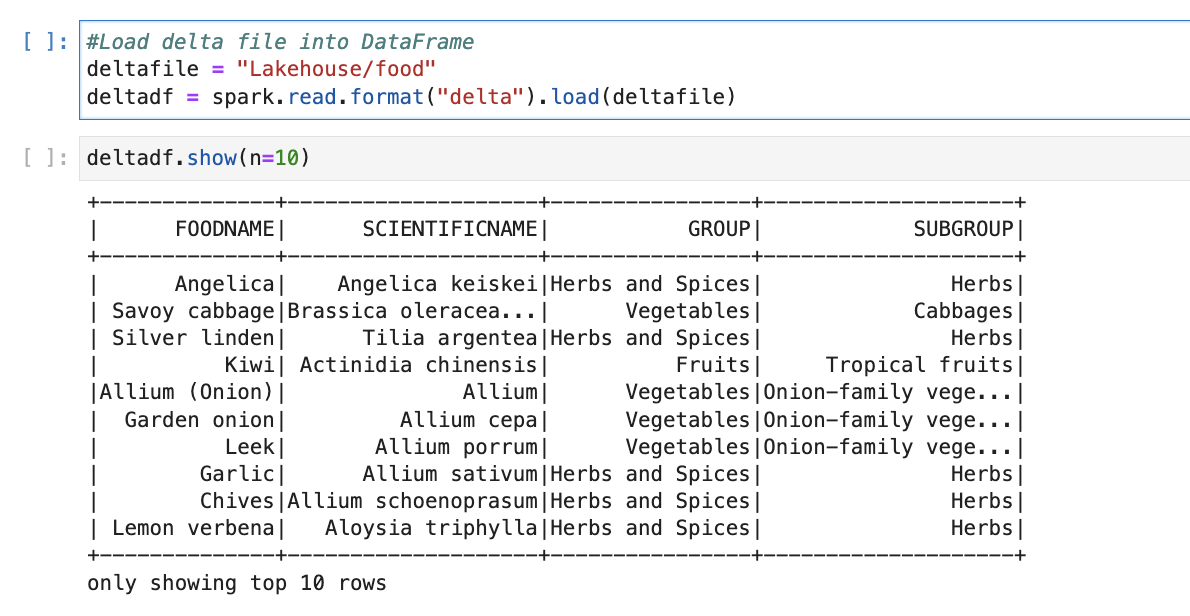
We can see what all data is stored there in the delta table, our next step is to learn how to update and delete rows from the delta table.
In the update, we will do the below operation
“Update Foods with subgroup vegetables_updated where “Group = Vegetables””
In this code, first, we load delta libraries, after that, we are passing the path of our delta table and checking if it is a valid delta file or not. After that, we are writing a query to update rows with group vegetables.
After the update operation, we are printing data so we are sure that the data is successfully updated.
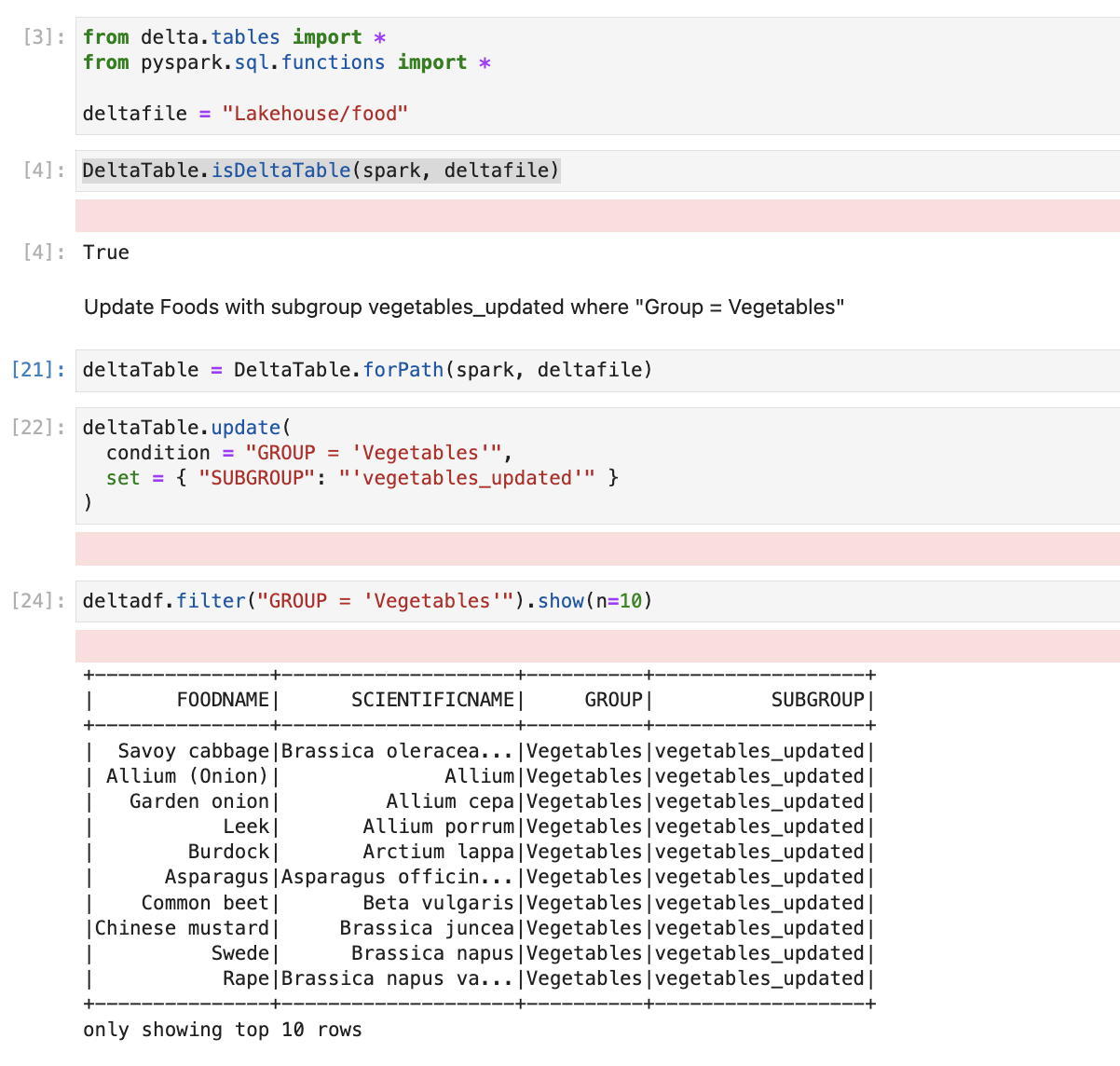
We have also updated the delta table; our next step is to learn how to delete rows. For that, we will use the same table and write code to delete rows for which subgroup is “Herbs”.
After, executing the delete command on the table, if we check data for the same group, we see that it is returning zero rows.

Data and Metadata understanding for Delta tables
As we discussed earlier, a delta table is the combination of data and metadata and for storing data it uses parquet files and for storing metadata files, it uses JSON files. And for each version, it creates one separate parquet file and one JSON file. But when we do a read operation, it combines all the parquet files based on instructions from the JSON metadata file and provides us with the latest data.
If we use the food delta table and understand the same. For the food table, till now we have done three operations, first, we loaded data from the source system, after that we updated the table and after that, we deleted a few rows.
For each operation, it created a separate parquet file and JSON file.
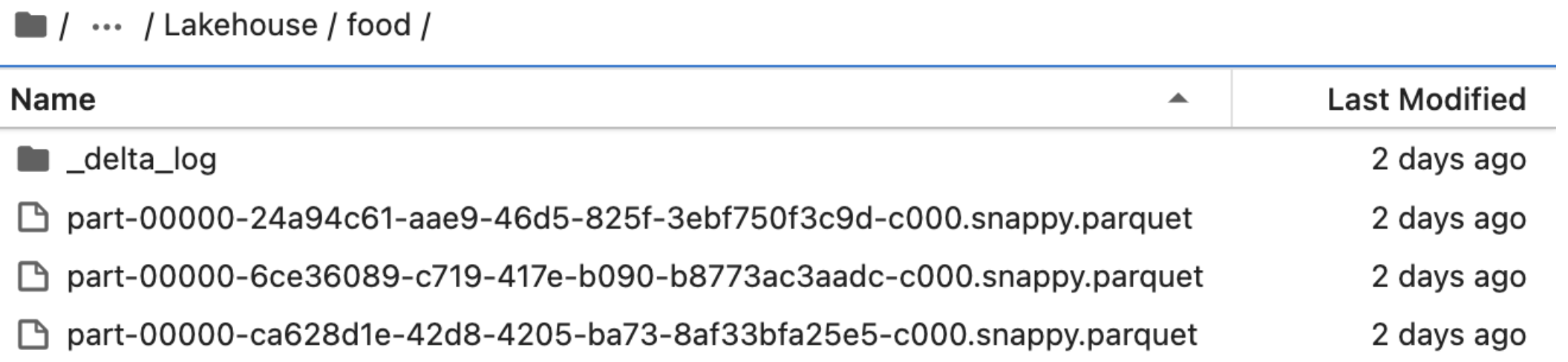

The metadata file will have all the information. Like when the file is created or what is the file name, and how many columns are there in the file.

Select queries on Delta tables and SQL functions on Delta tables (or Lakehouse)
Once, we load the delta table in Spark as Hive temp view, we can do all the SQL operations on it, we can also use all the ANSI-supported SQL functions and Windows functions on it. In this section, we will do a few hands-on. (We will use the same food table)
- Check the number of rows in the table
- Check distinct food groups on the table
- Get the number of rows with distinct food subgroups

Versioning and time travel with delta lake
One of the great functionalities of delta lake is we can data from specific versions and also, and we can also read data till a specific timestamp.
First, using the code below, we will check what versions we have with our food table.
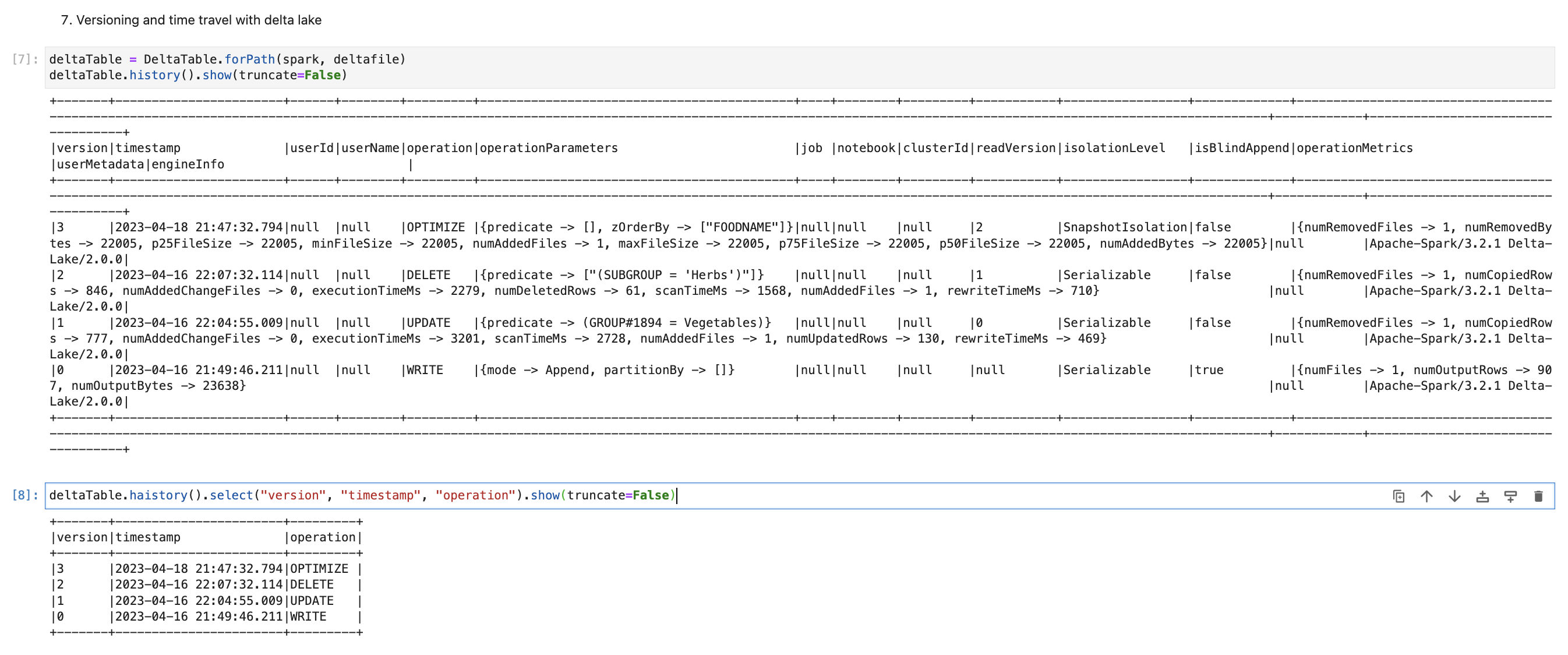
Here, as per the last query, we see that it has one version with each operation we have done till now. Our next step is to get data based on the version.
The output of these queries will be as below

Output from the first query, which is version 0. (Which is the original data that we loaded from the source system). And the output from the second query which is version 1. (Which is after the update query so we can see that all vegetable subgroup is “vegetables_updated” in the second query output)
Now, we will write a query to get data based on timestamps. (Time travel)
As per the code, we see that we have passed the option with the timestamp, so it will show the latest data at that timestamp. The first query will print data till the 18th of April and the second query till the 16th of April.
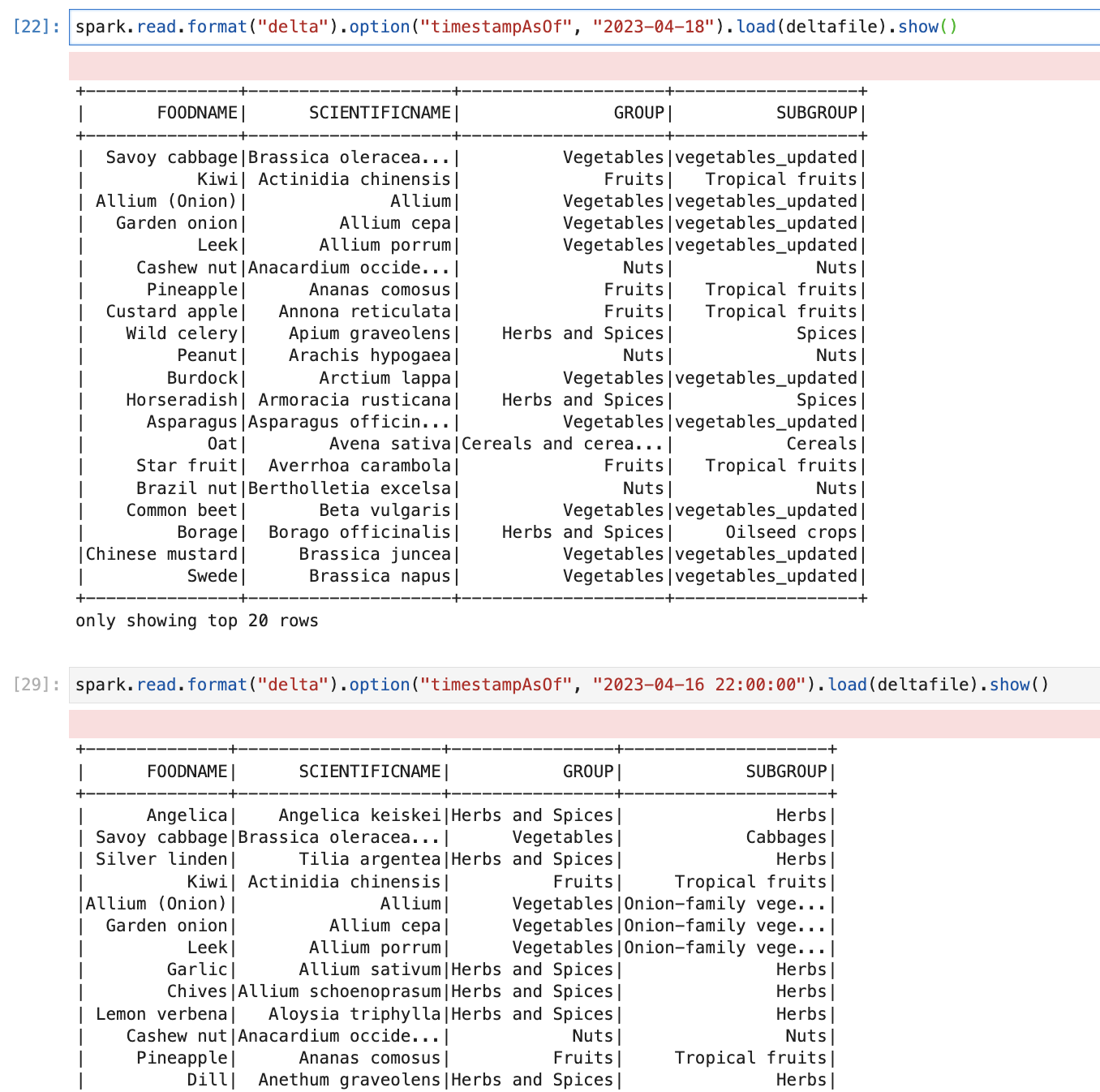
As per the query output, we can see that on 16th April, it was sourced data and on 18th April data is with the update and delete statement.
Optimization features associated with Delta Lake
Delta Lake provides three types of optimization features.
- Compaction
- Z-ordering
- Vacuum
One thing to note all of these operations are very expensive. For me with a very small amount of data, it used below CPU and memory. (for a few seconds)

Let’s start with compaction
When we create a delta table it normally creates multiple files based on the number of rows and with each operation also it creates new data and metadata files. Let’s consider a scenario where we have designed a data ingestion pipeline for incremental data load and every 1 minute hundred rows are added to the delta table. So it will create one more parquet file and metadata file. By the end of the month, we will have thousands of parquet files and each file will have 100 rows, so when we do a query on It, it will take time. (as it needs to traverse from thousands of parquet files and metadata files)
Databricks introduced the concept of compaction ((From https://docs.delta.io/))
“Delta Lake can improve the speed of read queries from a table by coalescing small files into larger ones.”
So basically, if we have thousands of files with the size of a few KBs when we perform compactions, it will create one (or few) big files in MB.
We will perform a compaction operation on our food delta table.

Let’s now learn about Z-ordering
Z-Ordering is a technique to colocate related information in the same set of files. This co-locality is automatically used by Delta Lake in data-skipping algorithms. This behavior dramatically reduces the amount of data that Delta Lake on Apache Spark needs to read. (From https://docs.delta.io/)
In our delta table, when we do a query based on an ordering column or if we only need data by filtering that column, and we create “ZORDER” on that column (or columns) our query will be very fast.
We will create “ZORDER” on the food name column and after that, we will check performance.
Now, if we check the metadata of the delta file, it shows that it applied Zorder on the food name column.

Let’s now learn about vacuum.
we can remove files no longer referenced by a Delta table and are older than the retention threshold by running the vacuum command on the table. vacuum is not triggered automatically. The default retention threshold for the files is 7 days

Here, we see that, for me, it deleted 3 files. and now I only have only one final file left in my food directory. It deleted all of the older versions and history. The ability to time travel back to a version older than the retention period is lost after running vacuum.
Food folder after running vacuum command.

Create Lakehouse in Azure Data Lake Services or AWS S3 bucket
As we discussed earlier, we can also create Lakehouse similar way on Azure Data Lake services or AWS S3 bucket. The only difference is we need to pass credentials and the location of ADLS/S3.
Please find the sample code for ADLS. If in case if you want to learn how to do all of these operations on Azure Data Lake Services.
Conclusion
In this blog, we have learned below
- What is delta lake?
- What are the features available with Delta Lake?
- How Delta Lake is the best fit for Lakehouse.
- How to create Lakehouse from scratch using Delta Lake.
References and learning materials
- Delta Lake Official guide: https://delta.io/
- Delta Lake GitHub Repo: https://github.com/delta-io/delta
- Delta Lake Road map: https://delta.io/roadmap/
- DataBricks Delta Lake Successful stories: https://www.databricks.com/customers/all
 Developers' HOME
Great intro to Delta Lake—clear and informative! 🙌
For those exploring data lake solutions, Helical IT Solutions offers expert services tailored for high-performance data management.