Please start with first blog on Docker at https://developershome.blog/2023/01/23/what-is-docker/
In this blog, we will understand how to use docker and how to create docker container/image and deploy first application on Docker.
Once Docker is installed, if you go to terminal and write
docker ps -> It will list all the docker container

docker image ls -> it will list all the images

Also, you can also use docker desktop application for the listing containers and images
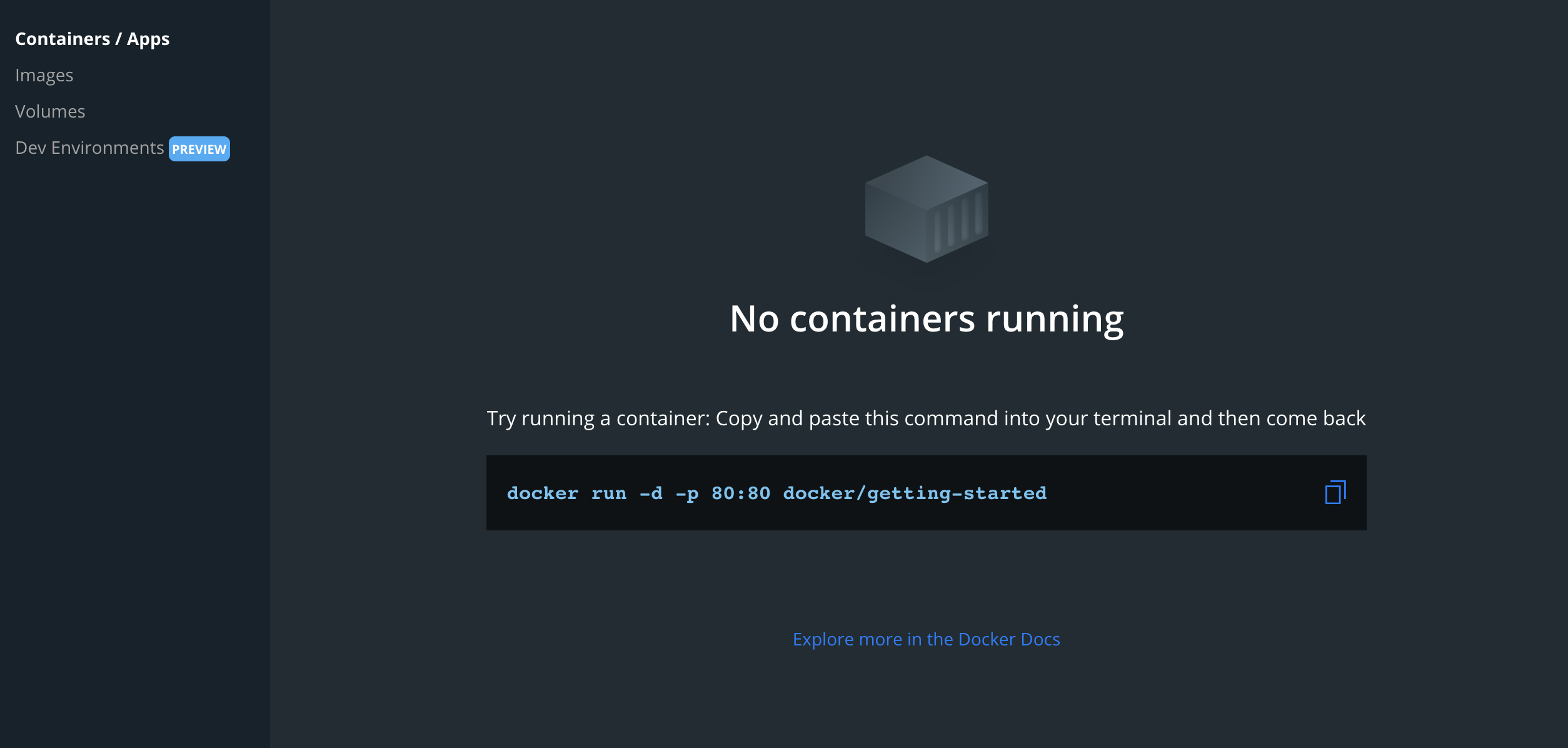
Now, we will execute below command and start with creating docker image and container
docker run -d -p 80:80 docker/getting-started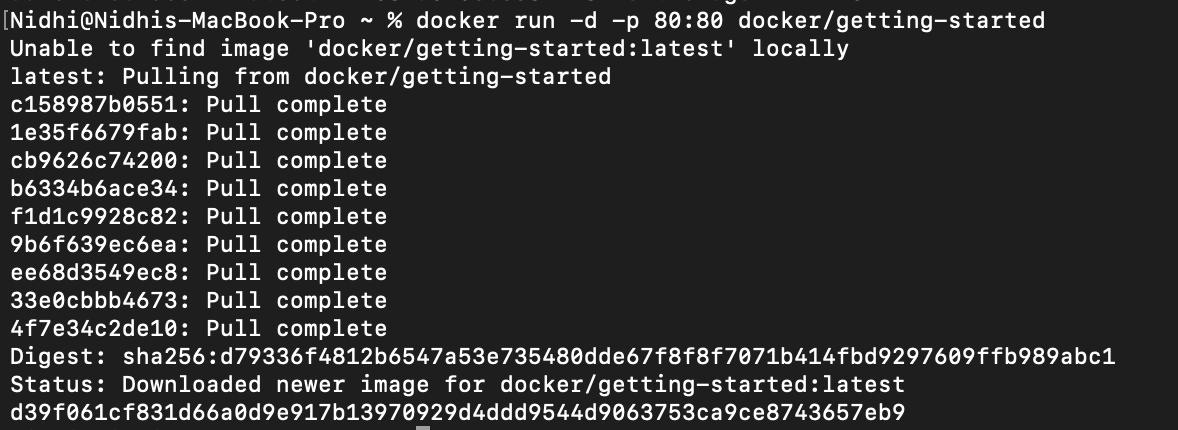
First, it checks if local images are available if not it will check on docker hub. And it will download images from docker hub.
What is Docker hub?
Docker hub is Playstore or Appstore for all the docker images. All the open-source projects and all the companies create docker images and upload them on docker hub. We can directly pull that from docker hub. (We can also put our docker image on docker hub)
For example, I want Spark to be installed in my system. I go to docker hub and search for spark and I get list of images from there

In our case, we requested for getting-started image
First image was downloaded from docker hub and then it created container


And container with name crazy_black also created. (if we don’t pass -t and container name, it will give random names)
Now, if we go inside docker container and check what are the components there and what is published on port 80
Command to go inside docker container
docker exec -it docker_cotianer_name/id
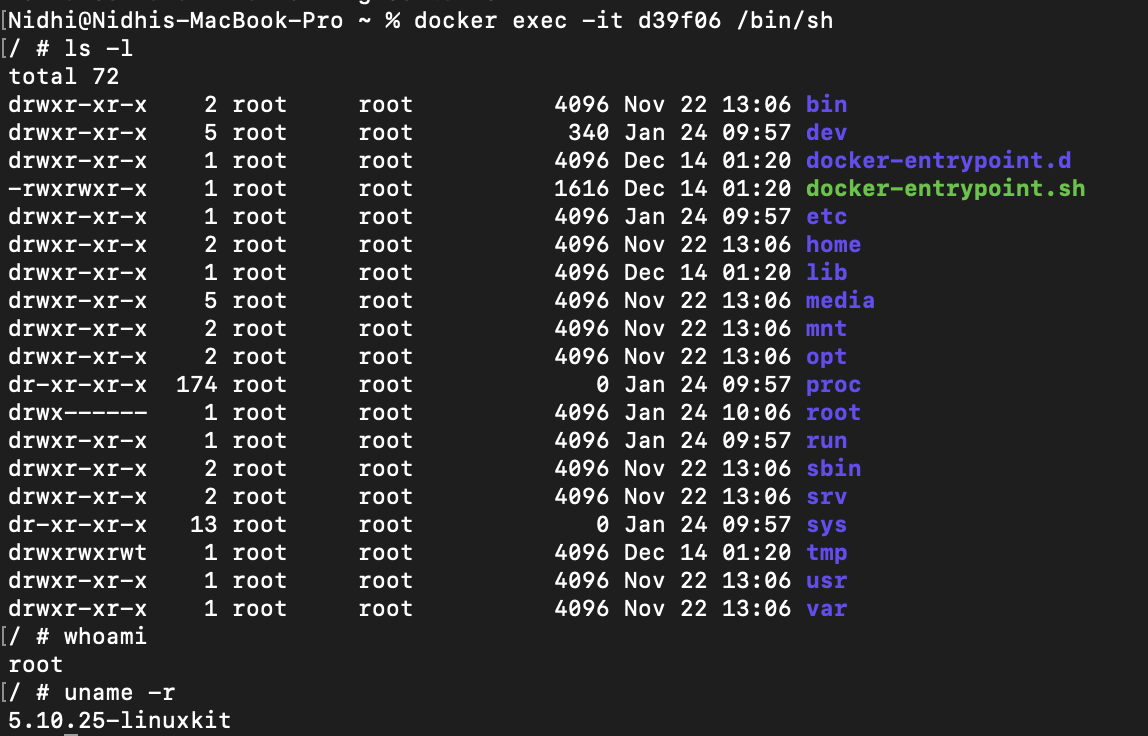
- We can check that list of all the folders inside docker container
- Also, we can see that this is plain vanilla Linux system
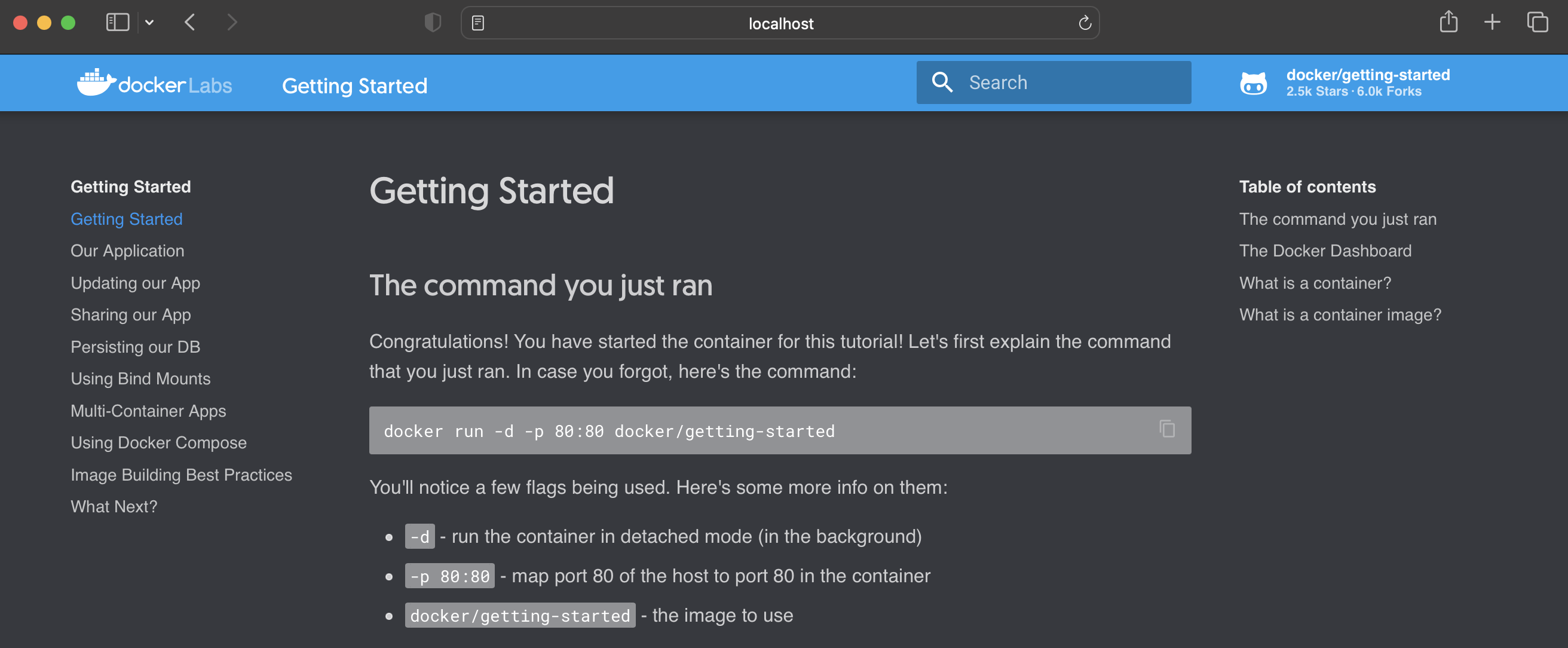
Now, if we go to localhost:80 or 127.0.0.1:80, we can see deployed application.
Next Step is deploying application from the scratch
- We have web server in Python
- And we want to deploy that web server on docker container
Step1
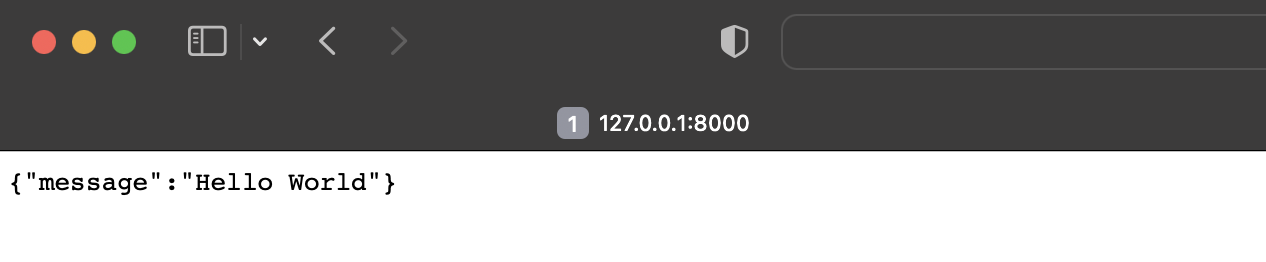
We have basic web server in python using fastapi

On get request we are getting JSON message as below
Step 2
Deploy this application on Docker
Create Dockerfile and specify all the steps which is required
GitHub Link: https://github.com/shahkalpan/Docker
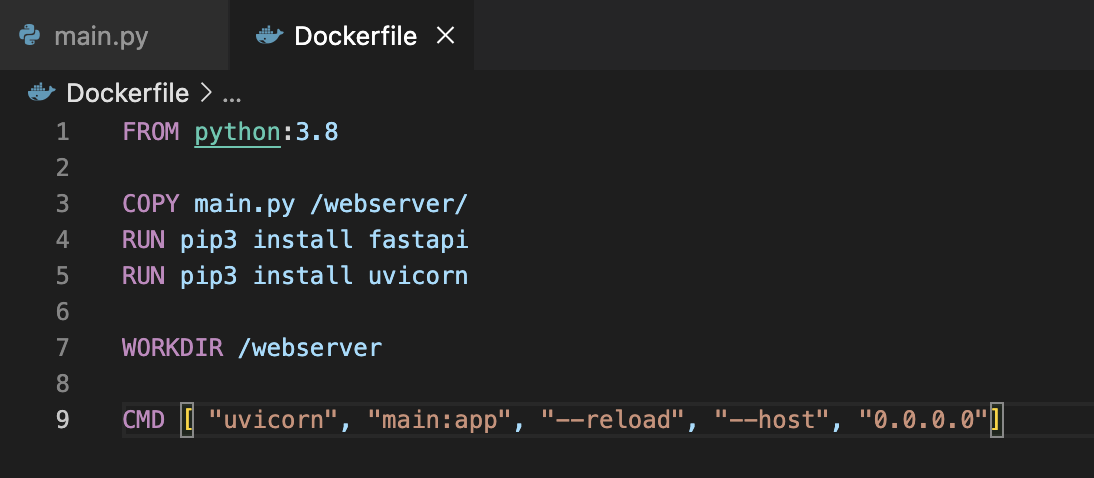
Next step is building image using this docker file
docker build . -t webserver
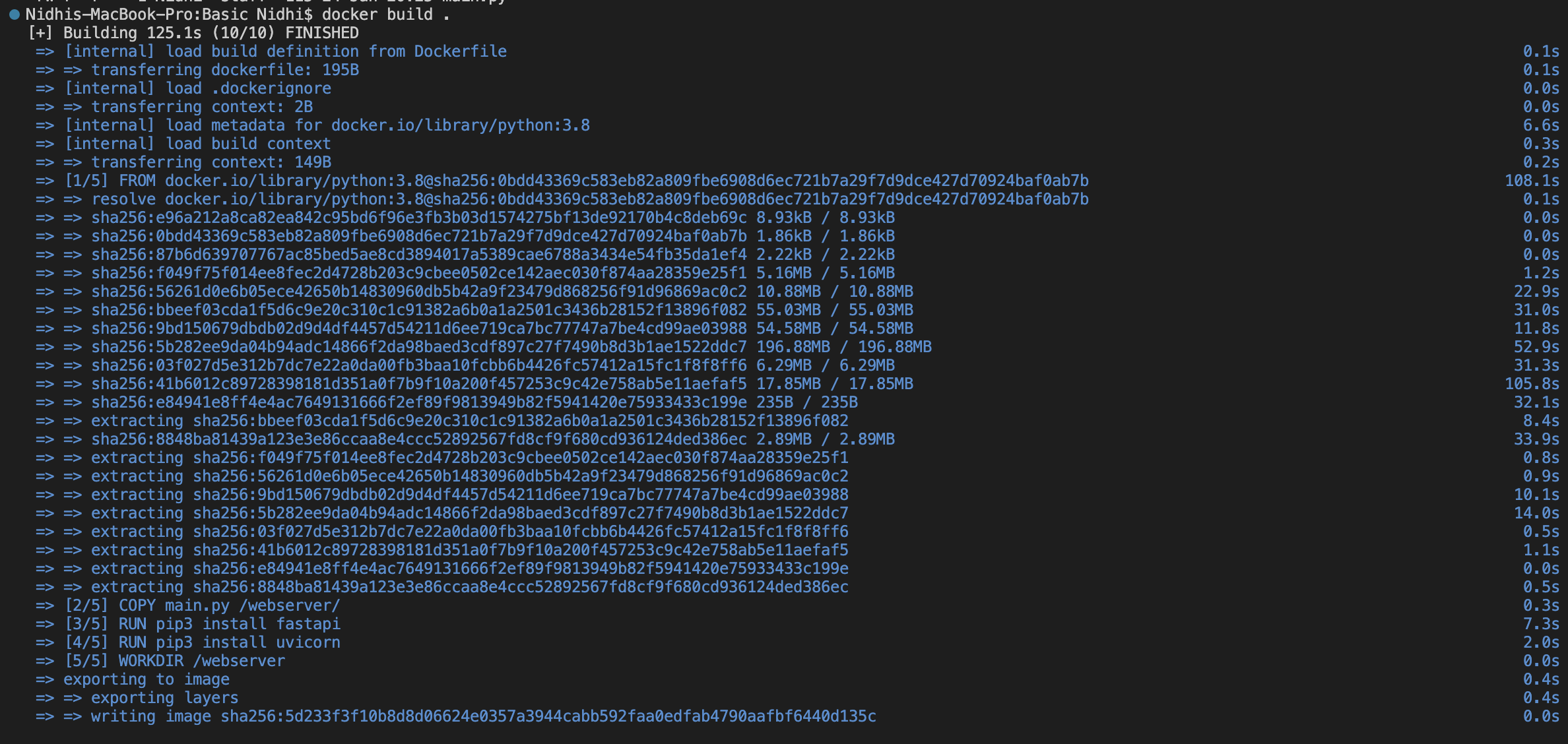
- There are total 5 steps to execute from Dockerfile
- First it will download python 3.8 base image from Docker hub
- Second it will copy main.py file and create webserver folder in Linux and paste main.py file
- Third install fastapi package
- Forth install uvicorn package
- and last make webserver as a working directory
- This way, whatever steps we want to execute, we mention that in Dockerfile and it will always execute while creating image.
Now image is ready
What is image ?
Image is combination of package which created based on Dockerfile. We can export and import this image to anywhere. If you want to relate this with old style windows image file you can relate. We can create image file for any of our application/tool.
From one image, we can create multiple container. and all container work independently. It can be installed on different server or on same server also.

Now we will create container with this image
docker run -p 8000:8000 webserver
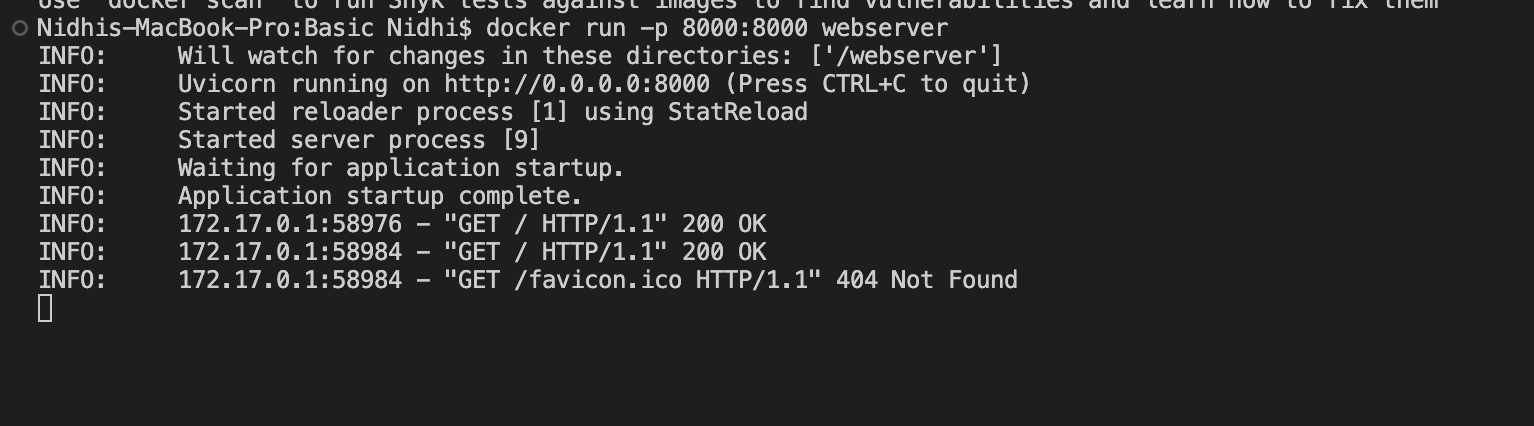
Using -p parameter, we have bonded internal port 8000 to external port 8000 so it can be accessible from out of container.
Now, if we go to browser, it will work
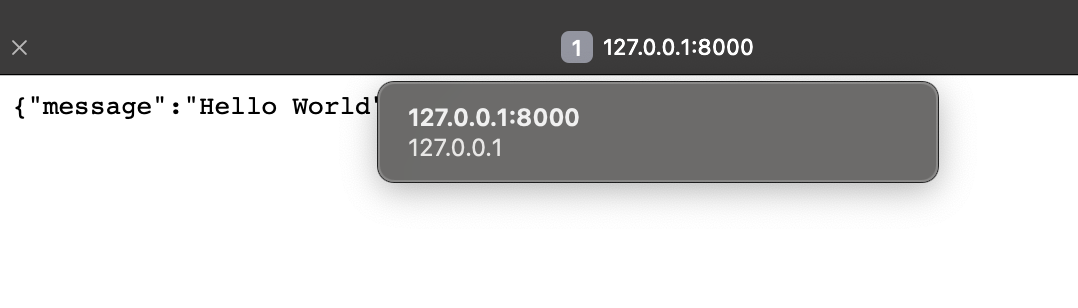
Application is successfully deployed and ready to use.
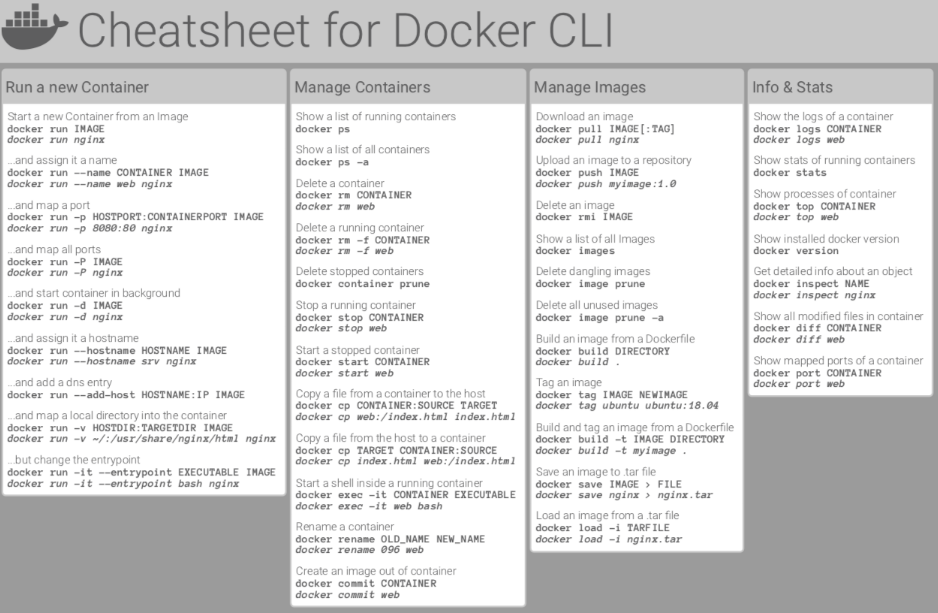
Important Docker Commands
In next blog, we will understand docker compose and how to deploy complex applications.
Also find below link for YouTube video on this
Second Part
 Developers' HOME
Really useful when starting to understand about docker